Tag: T-SQL

  • Filetable–Nesting folders and files

    In previous posts I showed how to create a folder in a Filetable and also how to the create (and move) files into the subfolder. However I didn’t repeat that and wanted to test the ability to actually nest things further. With that in mind, I’m going to take this to the next step.

    The Scenario

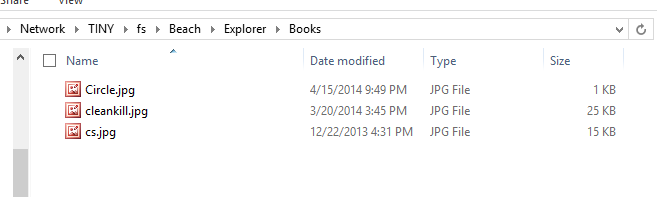
    What I’ve got is a subfolder in my Filetable called Books. This is the first level below the root of my Filetable share. This folder has three files in it.
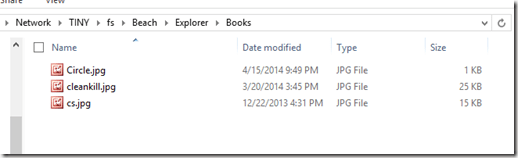
    filetable_j

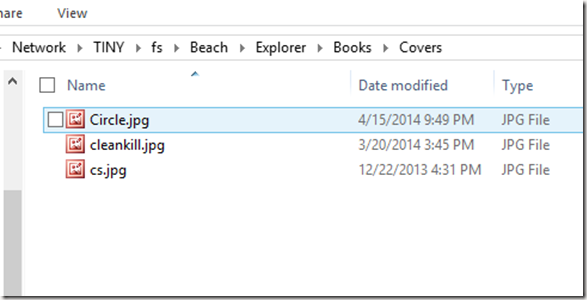
    One of these is the image of a circle, and the other two are images of book covers. I’d like to create a folder called “Covers” and then move the two jpgs into that folder together. Let’s see how this goes.

    The Solution

    The first set of code I want to run will create a folder, but it will have to be nested under the Books folder. As we can see from the table, the Books folder already exists and needs to be the parent_path_locator for my new folder.
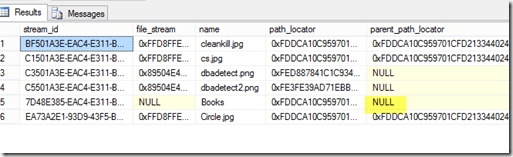
    filetable_k

    The highlight shows that “Books” is in the root of my Filetable.

    Here’s the code, which calculates the new path_locator using the path_locator of “Books” as a base and then inserts a new folder.

    DECLARE @path HIERARCHYID
    DECLARE @new_path VARCHAR(675)
     
    SELECT  @path = path_locator
    FROM    dbo.Explorer
    WHERE   name = 'Books'
    
    SELECT  @new_path = @path.ToString()
            + CONVERT(VARCHAR(20), CONVERT(BIGINT, SUBSTRING(CONVERT(BINARY(16), NEWID()),
                                                             1, 6))) + '.'
            + CONVERT(VARCHAR(20), CONVERT(BIGINT, SUBSTRING(CONVERT(BINARY(16), NEWID()),
                                                             7, 6))) + '.'
            + CONVERT(VARCHAR(20), CONVERT(BIGINT, SUBSTRING(CONVERT(BINARY(16), NEWID()),
                                                             13, 4))) + '/'
    ;
    
    
    INSERT  INTO dbo.Explorer
            ( name, path_locator ,is_directory )
    VALUES  ( 'Covers', @new_path, 1 );

    .csharpcode, .csharpcode pre
    {
    font-size: small;
    color: black;
    font-family: consolas, “Courier New”, courier, monospace;
    background-color: #ffffff;
    /*white-space: pre;*/
    }
    .csharpcode pre { margin: 0em; }
    .csharpcode .rem { color: #008000; }
    .csharpcode .kwrd { color: #0000ff; }
    .csharpcode .str { color: #006080; }
    .csharpcode .op { color: #0000c0; }
    .csharpcode .preproc { color: #cc6633; }
    .csharpcode .asp { background-color: #ffff00; }
    .csharpcode .html { color: #800000; }
    .csharpcode .attr { color: #ff0000; }
    .csharpcode .alt
    {
    background-color: #f4f4f4;
    width: 100%;
    margin: 0em;
    }
    .csharpcode .lnum { color: #606060; }Once that’s run, I see this in the table:
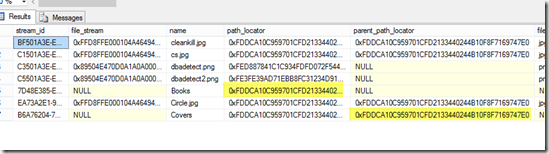
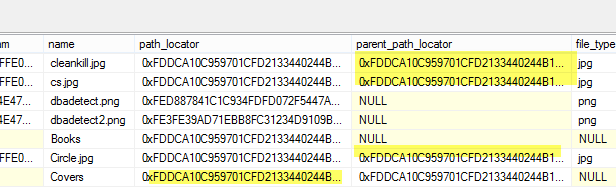
    filetable_l

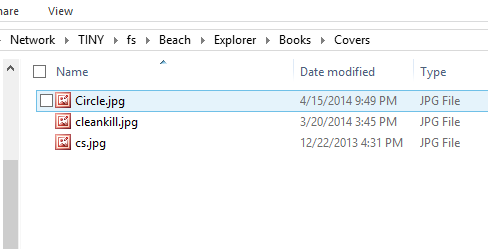
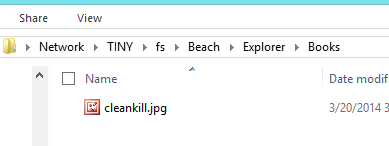
    The two highlights are the same values, with the parent of the Covers folder matching the path of the Books folder. In the Books folder we see:
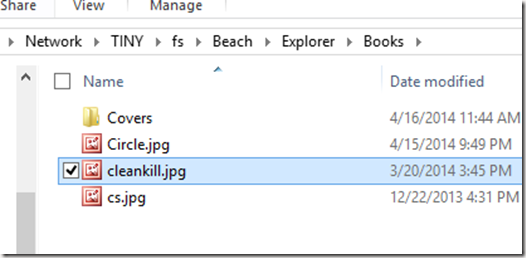
    filetable_m

    Things look good so far. I can programmatically nest folders. Now I need to move the two jpgs into the proper folder. Let’s do that in one (hopefully) statement.

    We use the same code as we did to move a file, but this time instead of a variable for the new path, we embed this in the update statement. In this case I actually moved all three files.

    DECLARE @path HIERARCHYID
     
    SELECT  @path = path_locator
    FROM    dbo.Explorer
    WHERE   name = 'Covers'
    
    Update dbo.Explorer
          SET path_locator = @path.ToString()
            + CONVERT(VARCHAR(20), CONVERT(BIGINT, SUBSTRING(CONVERT(BINARY(16), NEWID()),
                                                             1, 6))) + '.'
            + CONVERT(VARCHAR(20), CONVERT(BIGINT, SUBSTRING(CONVERT(BINARY(16), NEWID()),
                                                             7, 6))) + '.'
            + CONVERT(VARCHAR(20), CONVERT(BIGINT, SUBSTRING(CONVERT(BINARY(16), NEWID()),
                                                             13, 4))) + '/'
    
          WHERE RIGHT(name, 3) = 'jpg'

    .csharpcode, .csharpcode pre
    {
    font-size: small;
    color: black;
    font-family: consolas, “Courier New”, courier, monospace;
    background-color: #ffffff;
    /*white-space: pre;*/
    }
    .csharpcode pre { margin: 0em; }
    .csharpcode .rem { color: #008000; }
    .csharpcode .kwrd { color: #0000ff; }
    .csharpcode .str { color: #006080; }
    .csharpcode .op { color: #0000c0; }
    .csharpcode .preproc { color: #cc6633; }
    .csharpcode .asp { background-color: #ffff00; }
    .csharpcode .html { color: #800000; }
    .csharpcode .attr { color: #ff0000; }
    .csharpcode .alt
    {
    background-color: #f4f4f4;
    width: 100%;
    margin: 0em;
    }
    .csharpcode .lnum { color: #606060; }The table now shows:
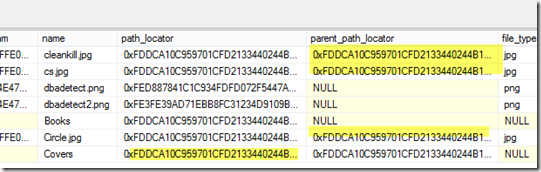
    filetable_n

    The shaded values, while very long now and truncated in the image, are in fact the same.

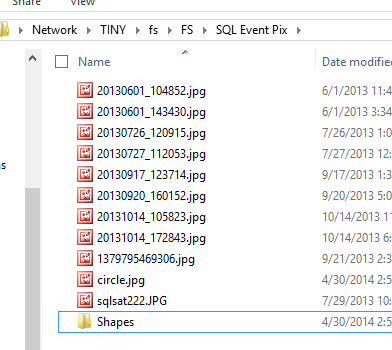
    The share shows:
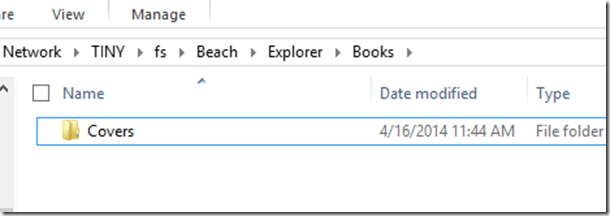
    filetable_o

    and

    filetable_p

    I could certainly have accomplished this in other ways, but being able to do this in T-SQL is a nice way of managing your files in a simple way that might be easier than changing an application. It’s certainly a good way to fix incorrect data if the application can’t do it and this can be much faster than having a user move lots of files manually.

  • Filetable–Moving files programmatically

    I’ve been playing with Filetable and I was asked an interesting question. Can I move files to a folder programmatically?

    It’s trivial to do this in Explorer. Just drag and drop, and I’d expect that most people using Filetable from the client side would do this. I’d even expect that lots of programmers might use Powershell and the

    However suppose I loaded a bunch of documents into the Filetable folder and I needed to move or process them. I certainly could handle this easily from the client, but it’s actually simpler to do this from T-SQL.

    The Example

    Let’s say I have a few files in the root of my Filetable as shown in this image. My Filetable is the Explorer table inside this path.

    filetable_c

    If I check this from T-SQL, I see four rows I my table. Two jpgs and two pngs. The jpgs are books and I want to move them into a separate folder.

    filetable_a

    I decide to set up a folder inside of this structure. I can do that, using the technique from another post to create a folder from T-SQL. I create the “Books” folder and now If I look at how this appears in the table, it’s like this:

    filetable_b

    In the share it looks like this:

    filetable_d

    What I want is to now set the parent_path_locator of the jpgs to be that of the Books folder. However I can’t update that field as it’s a computed column. However I can update the path_locator of the two rows and compute a new HierarchyID value that includes the path_locator of the Books folder.

    The way to do this is similar to how I would add a file to a folder. I use this code to computer the new HierarchyID and update the existing rows.

    DECLARE @path HIERARCHYID
    DECLARE @new_path VARCHAR(675)
     
    SELECT  @path = path_locator
    FROM    dbo.Explorer
    WHERE   name = 'Books'
    
    SELECT  @new_path = @path.ToString()
            + CONVERT(VARCHAR(20), CONVERT(BIGINT, SUBSTRING(CONVERT(BINARY(16), NEWID()),
                                                             1, 6))) + '.'
            + CONVERT(VARCHAR(20), CONVERT(BIGINT, SUBSTRING(CONVERT(BINARY(16), NEWID()),
                                                             7, 6))) + '.'
            + CONVERT(VARCHAR(20), CONVERT(BIGINT, SUBSTRING(CONVERT(BINARY(16), NEWID()),
                                                             13, 4))) + '/'
     
    Update dbo.Explorer
          SET path_locator = @new_path
          WHERE name = 'Cleankill.jpg'

    Once this is done I see the share looking like this:

    filetable_f

    Here’s the root of the share, and you can see my file has been moved.

    filetable_e

    I repeat this for the other file, though I could potentially have wrapped this all up into one statement. This easily moves my files to the subdirectory in my Filetable.

  • The Cardinality Estimator in SQL Server 2014 – Going Forward and Backward

    I saw a talk from Joe Sack (b | t) on the cardinality estimator (CE) in SQL Server 2014 and found it very interesting. To be fair, some of the "how it works" isn’t something I care about much, but I did like Joe sharing some places in which you might find problems with your queries and how the cardinality estimator might affect you. The talk is worth seeing if you get the chance.

    However one of the really interesting things, and an item I appreciate Microsoft building, is a switch to turn off the new CE. Actually, it’s not turned off, but you can set it to pre-SQL Server 2014 behavior (essentially 2005-2012) or to SQL Server 2014 behavior. What’s even better is that you can set this in a number of ways.

    Setting Database Behavior for all Queries

    Turning on the new CE is as simple as setting the compatibility level to 120. This will turn on the new CE for your queries in this database.

    The flip side is setting your compatibility level to something below 120 (110, 100, etc.) and your queries will use the old CE behavior in the query optimizer.

    Setting Behavior for Queries

    You can also specifically test queries with either the new or old CE. The QUERYTRACEON option can be used with these two flags.

    • 9481 – Uses the 2012 (pre-2014) CE with queries. This is used when the database is in SQL Server 2014 (compatibility mode 120) mode.
    • 2312 – Uses the new 2014 CE when the database, or defaults, are set to use the 2012 CE.

    This is documented in KB 2801413 from Microsoft.

    Setting the Server Level

    There is a trace flag that you can use at Server startup that globally sets the CE behavior. Set 9481 at startup and your SQL Server 2014 databases will use the old CE by default. Joe documented this on his blog.

    Usage

    I think this is great because if you are concerned about workloads being effected by the CE changes, then you can set the old CE as the default and test on your real production server by executing specific queries with the new CE and the query plan.

    Alternatively, if you upgrade and find problems, you can duplicate the old CE by using a query hint and see if the query performs better.

    I’d like to see this upgrade/downgrade granularity in more features that can potentially affect performance and I would say this is a fantastic architectural win by the SQL Server development team.

  • FileTables–Inserting Directories from T-SQL

    Creating a directory in a Filetable share is easy. It looks like this:

    filetable_i

    It’s hard to see, but this was a right click, New, Folder in the share from Windows Explorer.

    However what about creating a directory from T-SQL? That’s almost as easy.

    I created that folder above by running this code:

    -- create a folder
    INSERT  INTO dbo.Explorer
            ( name, is_directory )
    VALUES  ( 'Books', 1 );

    I provided a name for my folder and then a 1 for the is_directory property. Once I ran this, the folder above appeared in my share.

    Note that this works for folders in the root, but not nested folders. I’ll tackle that in another post.