Tag: hardware

  • The Desktop Rebuild–Part 3

    This is the last part of this series, at least for now. If you haven’t seen Part 1 and Part 2, feel free to check them out.

    After I got through Part 2, I was working again. In fact, I continued to chocotaley install a few things, but for the most part, I could get productive quickly, working on writing, email, even code. I did install Visual Studio, SQL, and SSMS by hand, mostly to be sure they were the right versions I needed.

    However, things weren’t great. The two monitors I showed from Part 2 were OK, but the not great. I missed my third monitor, especially when I had the second one in portrait more. I decided I needed to just upgrade things again. Not everything, just the video card.

    I tried my two older cards, shown below, in various combinations, but every time I added them to the motherboard, I couldn’t boot. Remove them, and things worked again. After 4-5 tries, I thought it was time to abandon this path.

    Photo Jun 27, 12 54 11 PM

    I’ve been stretching my budget slightly. I’ve had a few expenses here, and while this is tax deductible, it still costs real money. I got a few recommendations for video cards, including this Quadro K1200, which looked great. However, another $300 right now would likely get my wife a bit more upset than I’d like.

    I looked around the Internet a few times at night and found some other cards that would support 3 monitors, at a more reasonable cost. In the end, I decided to switch from ATI to NVidia and got a EVGA GeoForce GT740 card with two DVI and one mini HDMI out. Quite a few people had used this for workstations and it seemed to support 3 monitors well.

    Photo Jun 27, 12 54 16 PM

    This was a large card, and the first one I’ve ever owned that needed its own power connections. Hardware has changed. This is also a card with 4GB of memory, which is a long way from the first computer I built after college that had 4MB of main memory.

    Installing the card was easy. It slipped in, I connected it to power and my desktop booted right up. Well, I had a CMOS error, but I cleared things and then it booted. The mini-HDMI cable was a tight fit, but I managed to get it in there.

    One note on cables, go longer. I got a 3ft mini-HDMI to HDMI and it wasn’t quite long enough. I had to rearrange monitors a bit, which is OK, but I should have just gotten a 6 foot cable and then secured the extra.

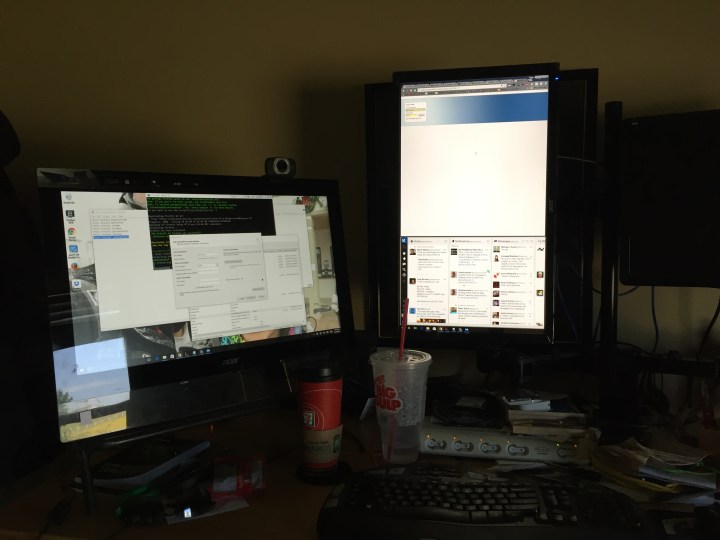
    I downloaded the NVidia driver before I’d shut down the machine, so I booted to a single monitor, installed the driver, and things worked right away. I configured things and ended up going with a 3 monitor config that has the center one in portrait mode.

    Photo Jun 27, 1 00 12 PM

    It’s been a few days and so far everything looks and works great. I’ve rebooted a few times, taken the desk up and down multiple times, and connections are solid, hardware is working, and I can get back to getting work done.

    I ran a test using UserBenchMark and got great scores everywhere but video and then only for gaming. Overall, this is a much faster machine, and seems to work smoother. I’ve had zero issues with the hardware and Windows 10 seems more stable since the fresh installation.

    2016-06-27 13_08_24-Asrock Z170 Extreme6 Performance Results - UserBenchmark

    My Windows Experience Index also changed dramatically.  The old machine was a 5.1, mainly due to graphics, with the other scores in the low 8s. The new score is 7.9, with graphics holding things back, but I have a third monitor now and more CPU and RAM resources.

    Summary

    Here are the changes I made. Note I’m not recommending these items. I got some recommendations from Glenn Berry, and they worked well for me. This stuff changes often, so check with friends and do your own research.

    Old

    • MB – Gigabyte, circa 2010-ish
    • 24GB RAM
    • 256 boot SSD, 512 SSD, 2x1TB HDD
    • ATI 512MB RAM graphics card, circa 2010
    • ATI 1MB graphics card, circa 2012
    • Corsair 600W power supply

    New

    ASRock Extreme6 motherboard – $109 (after rebate)

    Intel i7-6700k – $269

    32GB Memory – $50

    Cooling fan – $30

    EVGA Video – $110

    That’s $620 for a fairly substantial upgrade.

    I’m pretty happy for now, and I suspect this will last for some time. If I change anything, it will be adding another graphics card because I need video stuff (or I buy Doom 4) and getting a larger power supply.
  • The Desktop Rebuild–Part 2

    You can read part 1, but that’s more about the (initial) hardware changes. This one looks at getting moving on the new desktop. Note, that since I changed the MB/CPU/Boot disk, I decided to reinstall Windows as well on a new disk to ensure I wouldn’t have more issues.

    Having a new Windows desktop is a bit disconcerting. After all, many of us techies are used to loading more and more programs and documents onto our systems. We have lots of history with our machines, and Windows hasn’t always made it easy to move things. OSX is better, but I can’t build a Mac, or at least, I don’t want to.

    In this case, I still had me 2nd, 3rd, and 4th drives connected. The contained most of my documents, pictures, and application code. However, certainly some things needed to be installed.

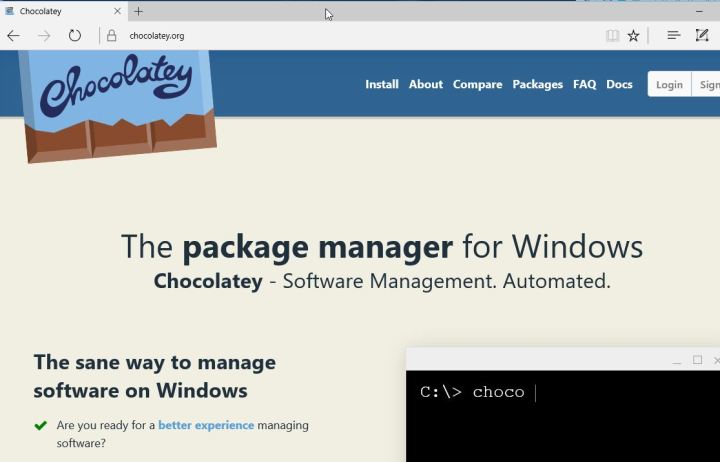
    The first thing I did with the new Windows 10 is run Edge and then go here:

    2016-06-23 23_37_58-Chocolatey ‎- Microsoft Edge

    I used to go get Chrome or Firefox right away, but I have a better way now. I use chocolatey. Once I get here, I first open a Command Prompt as Administrator and run this:

    @powershell -NoProfile -ExecutionPolicy Bypass -Command "iex ((new-object net.webclient).DownloadString('https://chocolatey.org/install.ps1'))" && SET PATH=%PATH%;%ALLUSERSPROFILE%\chocolatey\bin

    Once that finishes, I can begin installing things. In my case, I have a list of packages I want to install in a folder on my Dropbox. However, I need to get Dropbox first.

    choco install dropbox
    
    
    choco install passwordsafe

    Once that’s done, I log in (getting my password from my phone, and then I can run the rest of my installs, using Password Safe to get my passwords.

    choco install googlechrome
    choco install greenshot
    choco install conemu
    choco install firefox
    choco install sublimetext3
    choco install evernote

    I have Chrome and Firefox linked to an account, so my bookmarks come right over when I log in. SQL has to be installed separately, as does Office from my O365 account. I prefer to do Visual Studio myself, but these command line installs get me up and running.

    Fortunately I keep a copy of the .iso’s for those programs and can just run them.

    I also needed to flash my BIOS, which was easy, but I needed to download the newest file from ASRock and put it on a flash drive for a reboot. That went without a hitch, and I now have two monitor support again.

    Photo Jun 24, 10 33 59 AM

    I still need to adjust my monitor and also get a new video card to support the third monitor, but that’s for another day.

  • The Desktop Rebuild–Part 1

    I’ve had an aging desktop for some time. I originally bought it from Glenn Berry (b | t), who I think gets a new machine every quarter or two. Seriously, I think there is a computer in every room of his house, and he has a lot of rooms.

    In any case, I had an i7-930, 24GB of RAM, and 4 drives with about 3TB of storage. However, the CPU was aging and I’d get temp alarms when doing heavy video processing. In the last 4-5 years, I’d replaced the power supply and CPU cooler, but still had issues. The Windows 10 upgraded added more, with some weird freezing and loss of the Start menu. I didn’t have all of those things on my laptops (both w10, one new, one upgrade), so I decided it was time to rebuild when a simple Skype call had temp alarms going off.

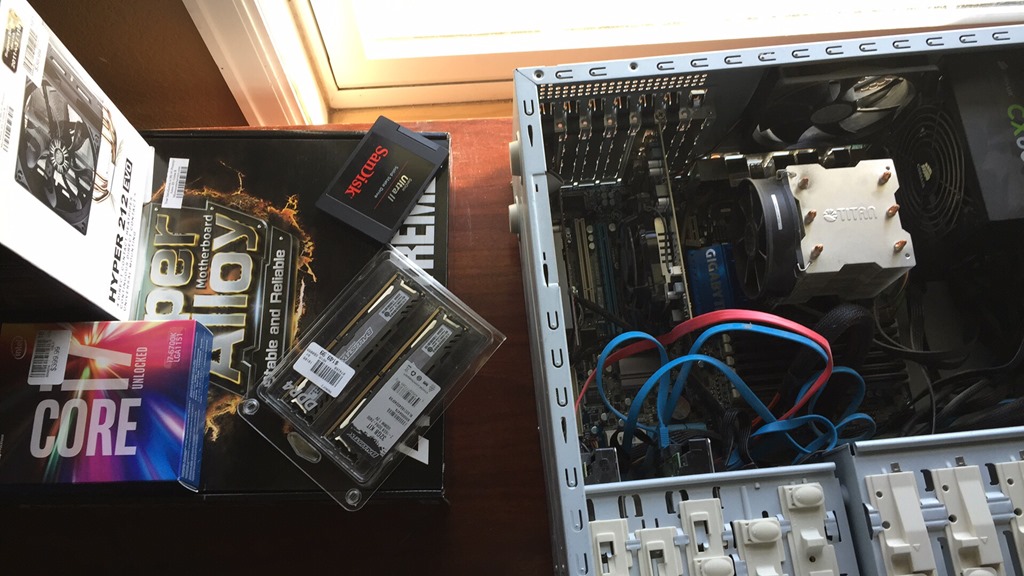
    Glenn is my hardware guy. If I have a question, I ask him, mostly because I don’t care about cool hardware and just want things to work. Glenn recommended these items (some of them), and I drove down to the local Microcenter after my Skype call finished.

    Photo Jun 23, 5 39 33 PM

    I purchased

    • ASRock Z170 Extreme6 motherboard (recommended) – $160
    • i7-6700k CPU ( recommended) – $290
    • CoolerMaster fan – $35
    • 32GB Corsair Ballistic RAM – $150

    I know I could find better prices, but I wanted this done quickly. I also needed a new video card, but I delayed that for now. I wish I hadn’t.

    After a few hours of work, and a day (filled with family commitments), I sat down with parts.

    Photo Jun 23, 5 42 30 PM

    I made sure my Crashplan was up to date, and my cloud services were sync’d. I’ve tried to do this in order to become productive quickly on new machines. I also had a new SSD that I’ve been traveling with, but I repurposed that as a new boot drive. The old one was 256, and this was 1TB, so I won’t be in danger of running out of space, something that I was close to doing on the old machine.

    I disconnected everything and pulled out the old (dusty) motherboard.

    Photo Jun 23, 5 53 11 PM

    It’s worked well, but it’s aging. It’s also somewhat slow compared to newer technologies, though that was (hopefully) a bonus, not a requirement.

    I then installed the new motherboard, which wasn’t too bad. The hardest part was getting the CPU cooler installed. Balancing the four arms and screwing things in while the large cooler wants to slide on thermal compound was a challenge. Fortunately I managed to get it secure without too much grease on my hands.

    I connected all my drives back, using some of the new SATA 3 cables that came with the motherboard. I didn’t bother connecting the front side speaker stuff since those connections are covered by the video cards. I added back both video cards and then plugged in basics: monitor, power, USB keyboard/mouse. I left some things uncovered, since I’ve rarely had things work perfectly on the first assembly.

    Photo Jun 23, 7 27 13 PM

    Crossing my fingers, I booted.

    Or didn’t. I got lights, which I haven’t always gotten. There’s a debug LED in there and I got a 99 code. Looking that up, I realized there’s a PCIe issue. There are only 3 slots, with 2 video cards, so I pulled one. Same issue.

    Pulled the second and it booted.

    I had made a bootable USB (borrowed from my son) and then added the W10 install iso. Things booted up and I installed Windows.

    Photo Jun 23, 7 31 21 PM

    I only had the onboard video, which worked, and I’m glad I had another machine since I needed to download the LAN drivers to connect to the network and video drivers to get beyond a basic 1024 resolution.

    Total time to get Windows back up, around 90 minutes, though most of that was wrestling with the CPU cooler.

    The next post will look at getting productive again, with newer hardware.

  • Back Home, Despite a Scare

    I’ve spent the last 11 days traveling in Europe, returning home late yesterday. It wasn’t a holiday or even corporate boondoggle as this was 3 cities, 2 events at which I spoke, travel in planes, trains, and automobiles, a minor sinus infection, and movement across 6 hotels. All with just this luggage:

    13087787_10209272872407736_4048621762789380628_n

    Packed too full, and heavy, but I made it.

    I returned late afternoon and in between spending time with family, I booted up my desktop and was surprised to find that Dropbox gave me an error. As I dug in, one of my SSDs wasn’t visible in Windows, containing VMs, my local DropBox folders and a few other things. Not what I wanted to deal with the first night back.

    I shut down the system and rechecked connections this morning, then rebooted to find things working, but it was a good reminder to double check my backups and ensure that I’ve got copies of data in case I do lose an SSD.