Tag: version control

  • What is the DLM Maturity Model?

    I’ve written a few posts on the Redgate Software blog to try and show how I see the DLM model, and how we see things at Redgate. We have a lot of developers that work in a similar way when building application software in C#, Java, Python, or other languages, and much of the company is trying to bring more engineering to database development.

    Part of what the DLM maturity model aims to do is help us classify how we progress to a more engineered, repeatable, and reliable way of managing database development. You can read my overview, and then dive into each of the various levels we’ve built. The levels are:

    Some of this is based on the CMMI model from the SEI, and some is based on what application developers are doing with their own continuous delivery mode. Simple Talk has written a What is DLM? article as well, and includes a different view of a maturity mode.

    I think this process becomes more important over time as we depend more on software and the databases behind them, with fewer and fewer tolerances for downtime or human mistakes in the deployment process.

    I’d like to get feedback from people on what they think of this model, and of the idea of engineering better database development. I know many people have built their own process, but far too many of the processes rely on custom scripts that are built and edited for each deployment, sometimes in the middle of the deployment. I think we could actually make database development better if we applied some better structure to our deployment.

    Redgate is working on tools to support this, in a few ways, but this isn’t about Redgate. Rather, it’s about building better software for everyone, whether you use Redgate tools, another vendor’s tools, or build your own. Follow a better engineering process.

    If you’d like to know more about the CMMI model, Alex Nordeen built a fools guide to the framework. It’s easier to read and understand than the CMMI site.

  • Git Push in SQL Source Control

    I’m excited. Git support is growing in SQL Source Control and the release recently contains Git push/pull support. If you don’t see the release of 4.1.x, you need to update. The update should be available for everyone.

    I do like Git. I’m working with SVN, TFS, and Git on a regular basis. However I tend to prefer Git overall. Now I can do most things I want to do in SOC, which is exciting. No forgetting to push or the need to drop to the command line or another interface.

    The Git Additions

    In a previous post, I set up a link between a database and a Git repository. Let’s see how the Git push now works.

    I’ve got this database on my local instance.

    soc_git_push_2

    It’s linked with SQL Source Control to a local Git repository.

    soc_git_push_3

    Let’s change something. I’ll pop open a stored proc.

    soc_git_push_4

    Let’s make a simple, but real, change. I’ll add a NOCOUNT setting in there, which is a good idea.

    soc_git_push_5

    In the Commit tab for SQL Source Control, I see my change. Note that most everything looks the same here and I can see the code differences like I always could.

    soc_git_push_6

    Now I commit this change. In this case, it goes to my local Git repo, but isn’t pushed.

    NOTE: In the real world, I’d pull before I commit to be sure I wasn’t causing a merge issue.

    Once that’s done, my Commit tab changes.

    soc_git_push_7

    SQL Source Control (SOC) detects the change and knows we have an unsynced Git repo. I can now push the “Push” button. Once I do this, I get a warning if I haven’t turned this off. I turn it off, but you should always be aware that SOC isn’t managing your Git repo. It’s linking to it. If you make changes in the repo with some other app, like Visual Studio, the entire repo is pushed, not just the change SOC committed.

    soc_git_push_8

    Once this is done, I once again see a clean Commit tab.

    soc_git_push_1

    However, if I go to the remote repo, which is on GitHub in this case, I see my change.

    soc_git_push_9

    I love Git. I think it’s really cool, and it’s a great way to work with distributed Version Control. I am playing with TFS as well, but I prefer Git, and I think this support is great.

    There are still things needed, things I want, and more, so be sure you add your votes to the SQL Source Control UserVoice page and let the SOC team know what’s important to you.

    If you’re not using SQL Source Control, you might check it out and give it a try for a month: http://www.red-gate.com/products/sql-development/sql-source-control/

  • A Practical Approach to Version Control

    Abstract

    Chances are, your team has several point-in-time backups for your databases. After all, they’re essential for recovering the system in an emergency. And, chances are, you’ve got a version control system (VCS) to provide the same capabilities for your applications.

    But what about version control for the database, too?

    Come to this session to see how you can create a more efficient database development platform by integrating your VCS with SQL Server. In real-time, you’ll see how versioning, branching, merging, and the other manual tasks you hate can fade away with just a few tips, tricks, and tools.

    Level: 200

    Demos

    I’ve built these demos:

    • Connecting your database to a version control system. I use Git here, but can use SVN (or TFS online with connectivity)
    • History and Changes – Getting a few of the changes made over time, tracking to a user, undoing changes.
    • Object Locking – Using Redgate’s SQL Source Control, but explaining how a semaphore is needed
    • Branching – A look at creating a branch in Git and then working with a second database.

    Downloads

    Powerpoint: SITC15_SteveJonesPracticalVCS.pptx

  • SQL Source Control and Git–Getting Started

    It seems as though Git is taking the world by storm as the Version Control System (VCS) of choice. TFS is widely used in the MS world, but Git is growing, Subversion is shrinking, as are most of the other platforms.

    As a result, I wanted to do a quick setup using SQL Source Control (SOC) and Git, showing you how this works. SOC supports Git in a few ways, so this is the primary way I’d see most people getting started.

    Update: Since this was published, the SQL Source Control team released an updated version (v4.1) with support for Git that allows push/pull within the client. I’ve got an updated post here.

    Scenario

    Here’s the scenario that I’ll use. I’ve got a database, WindowDemo, that has a few tables, some data, and a few procs. As you can see below this isn’t linked to a VCS.

    2015-09-24 16_34_56-Cortana

    I want to store my DDL code in c:\git\WindowDemo\trunk. I’ve got that folder created, but it’s empty. I’ll keep related database stuff (docs, scripts, etc) in c:\git\WindowDemo if I need it.

    2015-09-24 16_37_36-Photos

    Git Setup

    The first thing you need to do is get your Git repository setup. There are many ways to do this, but I’ll use the command line because I like doing that. The commands in the various client GUIs will be very similar.

    I’m going to set the git repository here at c:\windowdemo to keep all my database stuff in one place. To setup the repository, I run a git init in the command prompt. This initializes my repository.

    2015-09-24 16_41_02-Photos

    Now I have a git VCS, I need to get code in there.

    SQL Source Control Setup

    Now I move to SSMS to link my database to the repository. In SSMS, I right click my database and select “link database to source control”.

    2015-09-24 16_42_27-Start

    This will open the SOC plugin on the setup tab. I’ve filled in the path to the place in the repository I want the code to go. This is the trunk folder. I’ve also selected Git, using the “Custom” selection on the left and Git in the dropdown.

    2015-09-24 16_43_54-Link to source control

    Once I click the link button, I’ll get a dialog showing progress and then return to the setup tab.

    2015-09-24 16_44_15-Start

    Notice the balloon near the top. This lets me know the link is active and I have changes in my database that aren’t in the VCS. There’s a pointer to the “Commit changes” tab, so I’ll click that.

    2015-09-24 16_48_00-New notification

    In the image above, I see I have a number of “new” objects from the perspective of the VCS. I can see the name, and the type of object in the middle. At the bottom, I see the version in my database (highlighted code) on the left and the version in my VCS (blank) on the right.

    This is where I commit my changes. I enter a comment at the top and click the “commit” button on the right (not shown). When I do that, I’ll get a clean “commit tab” that shows that my VCS is in sync with my database DDL.

    2015-09-24 16_50_18-SQL Source Control - Microsoft SQL Server Management Studio

    Inside Git

    What’s happened in my VCS? Let’s look in the file system. Here I see my trunk folder.

    2015-09-24 16_51_49-Photos

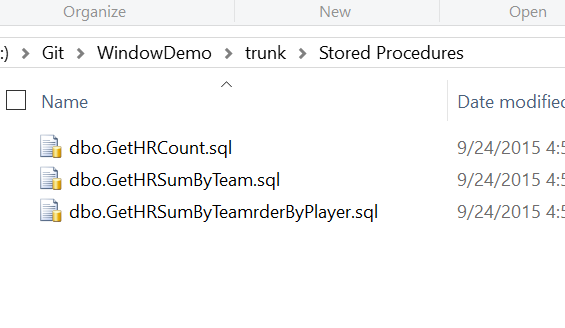
    SOC has created a structure for my DDL code and included some meta data. If I look in one of these folders, such as Stored Procedures, I see

    2015-09-24 16_58_56-Photos

    This is the .SQL code that matches what’s compiled in my database. SOC stores the current CREATE statement for all my objects so that they can easily be examined.

    Inside Git, I see a clean status with all my files as committed objects.

    2015-09-24 17_02_57-Start

    This is what I want. Now I can continue on with database development, tracking all my changes. I’ll look at the flow and tracking changes in another post.