

Someone asked me in a webinar how to change the default backup directory. I knew, but realized that I didn’t have a reference and ended up with more explanation than needed if I’d had a post. So here it is:
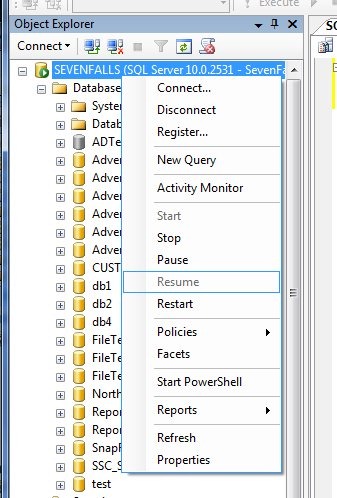
If you right click on a server in Management studio and select properties, you get dialog with lots of options.
If you click on the “Database Settings” you get this:
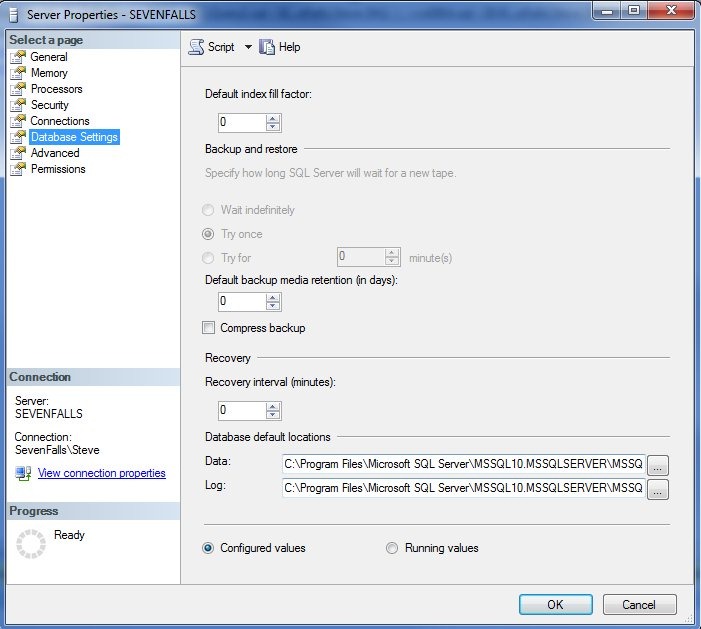
Note that there is a default path for data files and log files, not not one for backup files.

So how do you change it? In XP or Win 7, click Start and type this right away “regedt32”
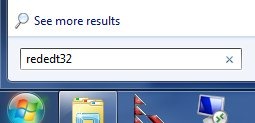
That will start the registry editor. You ought to get a UAC box to confirm access, which is fine. Do that and you’ll be in the registry. In the left pane, browse to this path:
HKey_LocalMachine\Software\Microsoft\Microsoft SQL Server\MSSQL.1\MSSQLServer”
Note that the “MSSQL.1” might be different, depending on your instance. For me it’s SSQL10.MSSQLServer.
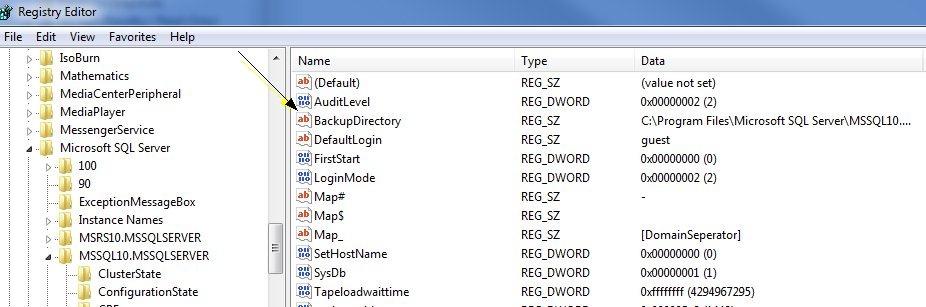
Note that there’s a “BackupDirectory” key here. You can double click it to change the path:
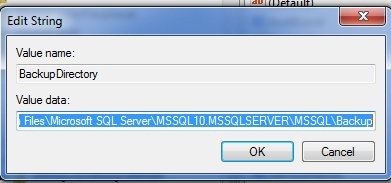
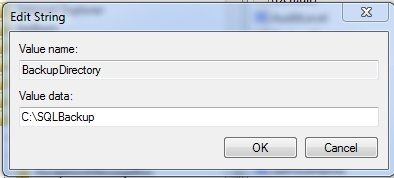
I changed mine to a new path, c:\sqlbackup. Note that I had to create this folder.
That’s not enough, however. If you go into your adminstrative tools and find the Computer Management and look for Users and Groups (Select groups), you’ll find groups like this. The name varies, depending on the name of your workstation/server and instance.
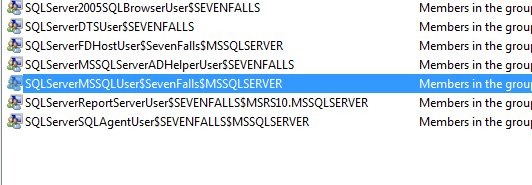
Once you have this name, I’d copy it and go to your new folder. Right click, select properties, and then the security tab
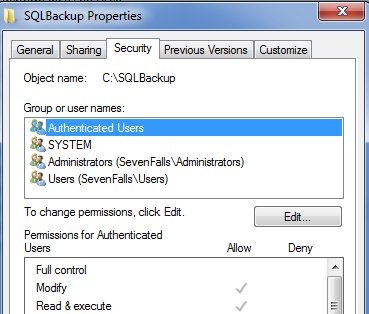
As you can see, my group isn’t in here, but this group, with the SQL Server service account in it, needs permissions to this folder. So add them, with modify.

Is my default changed? I could now run this:

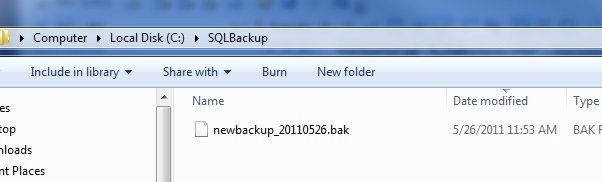
and I find a file in my new default folder:


Comments
One response to “SQL Server Default Backup Directory”
There is another method you can use with SQL Server 2008 management tools. In SSMS right click a server and select “Facets”. Under the “Server” facet there is a property called “Backup Directory”. Changing this value will also change your defult backup directory. You will still need to make the permission changes as described in the blog post.
LikeLike