
I work for Redgate and write about products. I’ve got a series of SQL Prompt posts here on little things I like. SQL Prompt might be my favorite tool. SQL Prompt will be yours as well if you give it a try.
I learned something new recently about SQL Prompt. I was working on documenting and experimenting with snippets and found a quicker way to write code.
One of the things I think is great is to use the TRY..CATCH structure. I don’t do it enough, but I want to do this more, and make it smooth. SQL Prompt includes a tc snippet, which gives me this code when I type t-c-TAB.

You’ll notice that my cursor is in the CATCH block. Why? Well, if you pause after t-c, you’ll see the snippet and code (unless you’ve turned off the window). Notice the $CURSOR$.
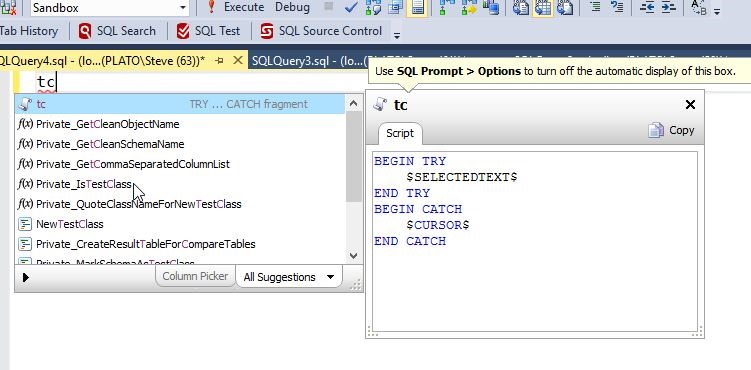
This means the cursor appears there. Not too handy. However, also notice the $SELECTEDTEXT$ snippet. This is handy.
Let’s change our code and include an update statement. For example, suppose as part of a procedure, I’m writing this code:
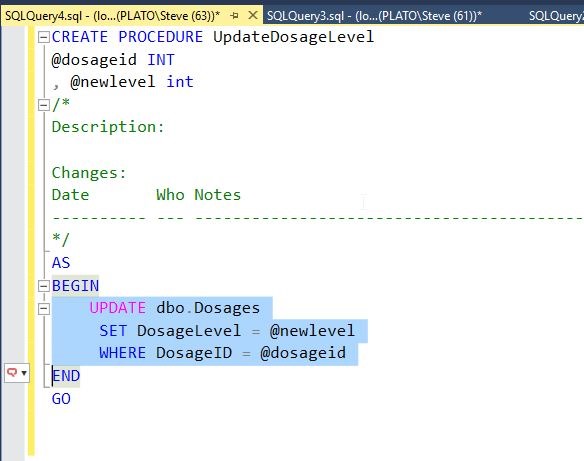
I’ve got a procedure, and I’ve forgotten to include TRY..CATCH. Certainly I can surround the highlighted code with the structure, but that’s cumbersome, even using Prompt’s intellisense.
There’s a better way.
Notice the little SQL Prompt icon in the side bar. Prompt is active, and if I click CTRL, I’ll get this:

I’ve activated SQL Prompt in the context of my highlighted text. Now I can type t-c and see the snippet.

If I hit TAB, I get this:
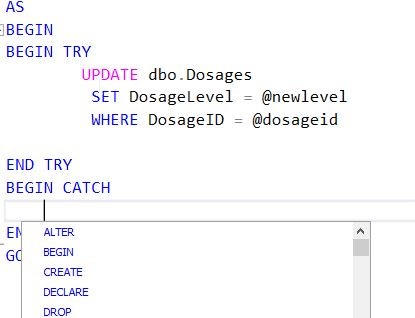
Pretty cool. My update is surrounded by the snippet code, and placed where the $SELECTEDTEXT$ placeholder was used.
Use this. Write code quicker and make it better.
Try a SQL Prompt evaluation today and then ask your boss to get you this productivity enhancing tool, or if you’re using the tool, practice using ii the next time you need to insert some data.
You can see a complete list of SQL Prompt tips at Redgate.




 Voice of the DBA
Pingback: What’s the little popup window in #SQLPrompt? | Voice of the DBA