
Another post for me that is simple and hopefully serves as an example for people trying to get blogging as #SQLNewBloggers.
I would think many people know how to do this, but I’ve run into a few, so here you go.
There are times you need to run elevated commands on a machine as an administrator. I’ve had to run various apps, as well as command utilities in this way, so I’ve learned how. I’ll give you two ways to get admin command prompts running.
Cmd.exe
This is the command prompt most people on Windows use. You can hit the Windows key and type cmd, and you’ll see this:

On Win 7 or earlier, you’d get something along these lines.

In either case, if you hit Enter, you’ll get this:

A command line where you can type DOS style commands. Many of you might not use this much, but you should. The more you know about doing things from the command line, the more efficient and effective you’ll be. Plus you’re well on your way to being comfortable in DevOps type environments.
This isn’t a privileged command prompt, and certain things won’t work here. To get an administrative level prompt, do this. First, after typing “cmd” don’t hit enter. Instead, right click the icon. You’ll see this:

Or this:

In both of these, there is a “Run as administrator” option. You want that. Once you do, you’ll need to accept the UAC prompt to allow an administrative level command prompt to open.
ConEmu
I have switched to ConEmu. I think it’s a much better console, and it’s handy. I get it with Chocolatey, and then it’s just a hot key away. What’s more, I can easily open multiple command windows. For example, I’ve got two open, but I can open a third, administrative level one, but right clicking allows me to restart my prompt.
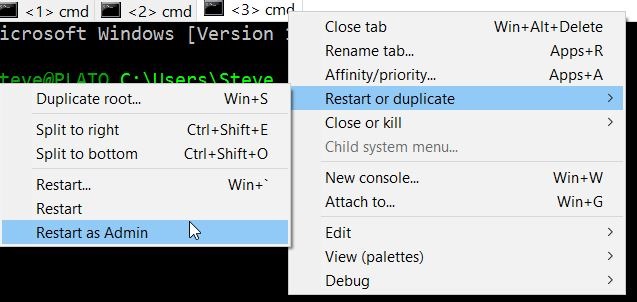
When I do that, I need to acknowledge the UAC prompt, but then I’ll have an admin level prompt.
SQLNewBlogger
These quick, handy tips showcase your continuous learning and improvement. As well as help you remember cool things like this.




 Voice of the DBA