
A customer was asking about what certain items in Redgate Monitor mean. They have a variety of skills on their staff, and they have developers accessing Redgate Monitor. This post explains how your staff can start to learn a bit more about SQL Server as they use the tool.
This is part of a series of posts on Redgate Monitor. Click to see the other posts.
Tool Tips
There are lots of little tips and documentation available in Redgate Monitor. These have been added with various references to help you learn more about the data collected by Redgate Monitor, as well as assist you in tuning your system for optimal performance.
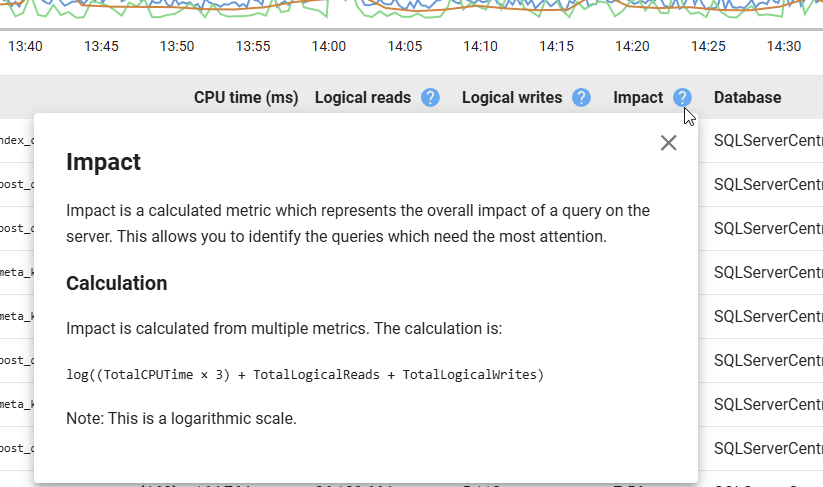
For example, there is an Impact column when I look at a server and see the queries that have run. Next to this is a question mark in a blue circle. Clicking this lets me learn about what this column is and how it is calculated.
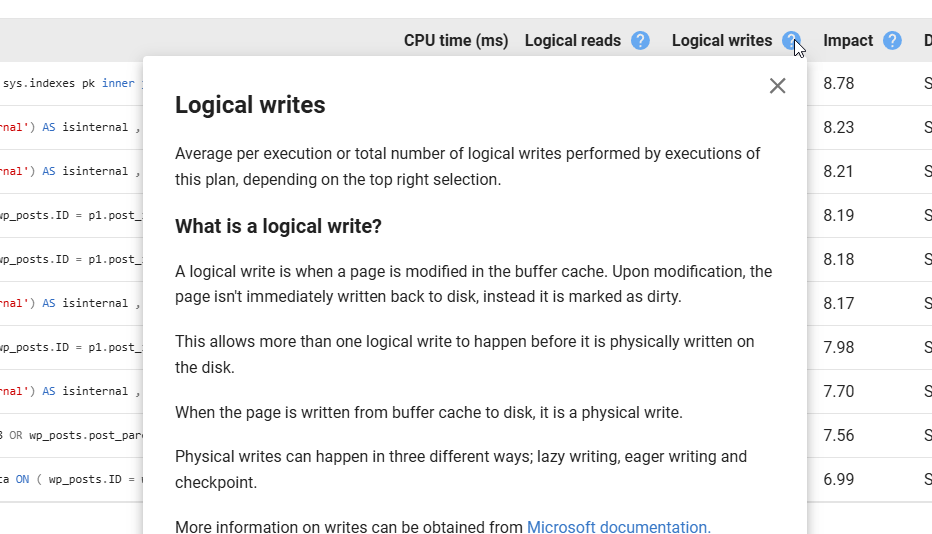
Similary, if I didn’t know what a Logical Write was, I can click this item and see where the data comes from. I also get a link to the Microsoft documentation at the bottom.
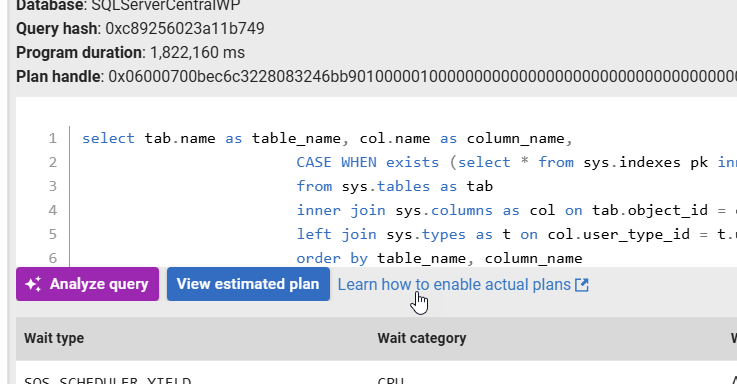
If I want to see actual plans rather than estimated ones, I have a link by the details of a query that sends me to the Redgate Monitor docs.
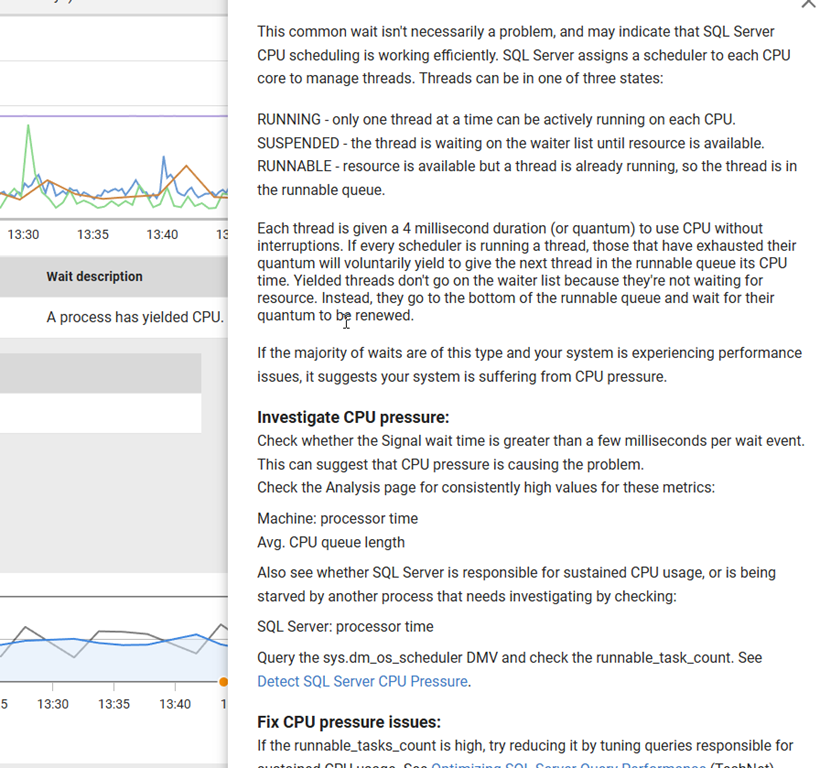
Below this I see waits that are significant. Next to the wait description, I can learn about what this wait means.
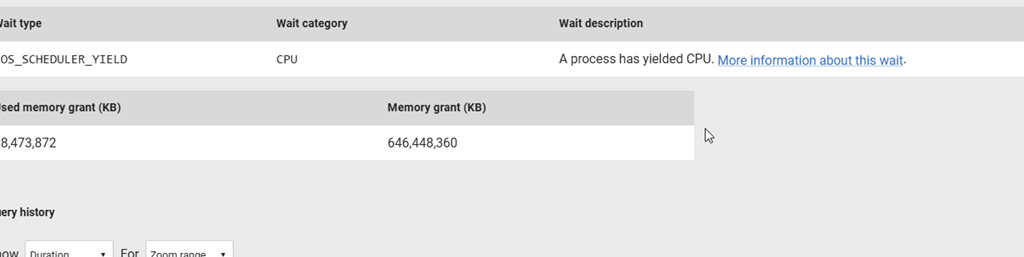
If I click this, I get a long description of what this is and where I might look to investigate this or fix it.
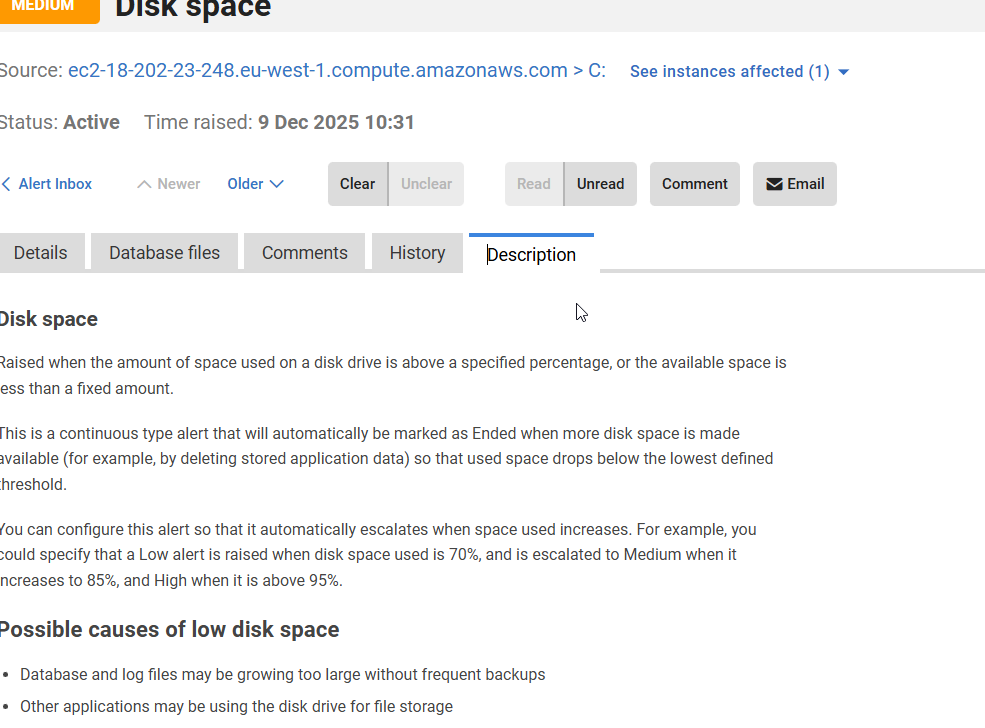
In the Alerts section, there is a description tab for each Alert. If you check this, it explains what this alert is, when it is raised, and potential reasons. Here is the Disk Space alert description
Here is the one for Job Failures.

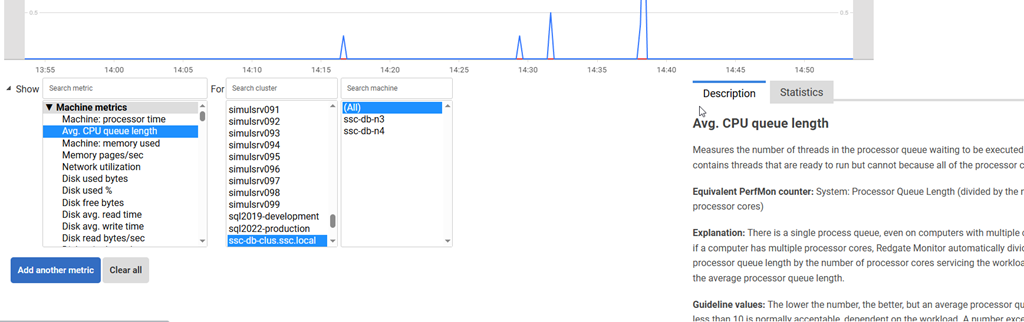
If you are analyzing metrics, we give more details when you select a metric in the Analysis tab. This is handy if here are metrics you don’t understand and want more information without spending time Googling or asking an AI.
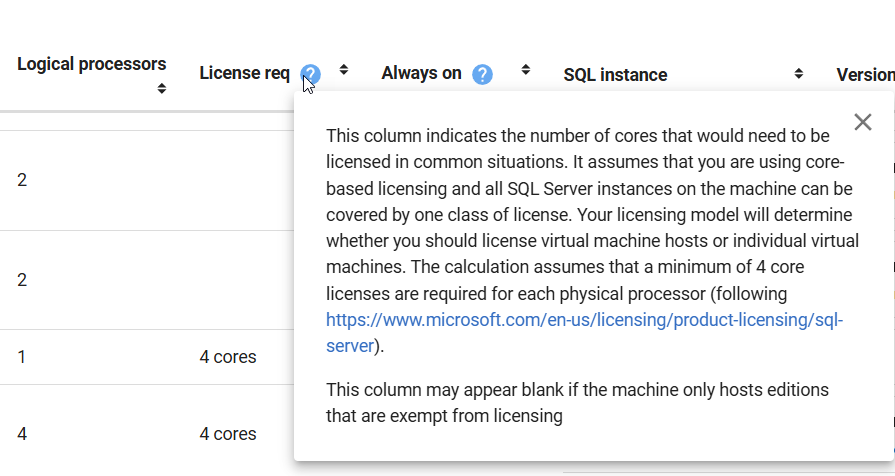
We even have some guidance in the Estate tabs, such as this tooltip on the License Req column. We let you know what we are showing and why, and a link to guidance from Microsoft.
Summary
This post shows some of the places where you can learn more about how Redgate Monitor works, or how you should use the data displayed. There are many more places inside the product where you get assistance that helps you get the most out of your monitoring solution.
SQL Server, PostgreSQL, Oracle, and other platforms have become very complex. Redgate Monitor tries to help simplify your workload by giving you a single pane of glass across the cloud, different platforms, and different environments, but it can be hard for anyone to manage an estate.
This post gives you an idea of how Redgate Monitor tries to help you learn, or reminds you, of what you’re seeing.
Redgate Monitor is a world class monitoring solution for your database estate. Download a trial today and see how it can help you manage your estate more efficiently.




 Voice of the DBA