

I love SQL Prompt, and think it’s a great productivity tool. Even before I worked at Red Gate, I love the tool and had a copy before Red Gate bought the technology from the original developer. Recently I’ve run into a few people that weren’t aware of some of the ways in which it can help you. This is a quick look at one of the ways I use SQL Prompt.
SSF
I probably type SSF more than any other character combination in SMSS. With SQL Prompt installed, I usually quickly type “SSF” and hit “tab” and get this:
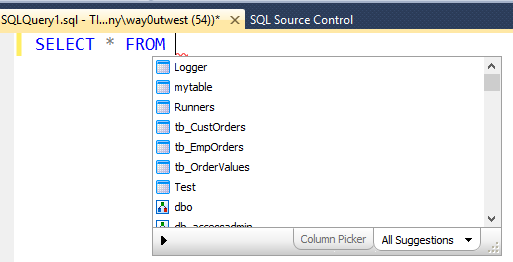
SQL Prompt has expanded my “SSF” into “Select * From” and then popped up a list of tables in this database. I could down arrow to select one, or use the cursor, or start typing.
This is a quick way to get data from a table back to your SSMS client without worrying about the columns or rows you need from a table. I use this constantly, though I’ve edited this command to return the top 10 rows only. Here’s how I do that:
Snippet Manager
There’s a dialog for managing these snippets of code, called the Snippet Manager. You can access that from the SQL Prompt menu

Once you select this, you get a dialog that shows all the snippets installed on your system. I scrolled down to the “SSF” snippet that I often use.

If I click the Edit button, then I get a small editor where I can paste in code or edit what’s there. In this case, I add the “TOP 10” keywords, and I also reformat the code slightly. I like my code formatted, so I ensure it’s formatted here.

Once that’s done, I click “Save” and then “close” for the Snippet Manager. Then the next time I type “SSF” and tab, I get this:

Note that there is an st100 snippet that does the same thing I edited with 100 rows, but I find ssf easier to type, so I just edit this snippet.
I’d encourage you to play around with snippets, and also adopt this in your daily work. If you don’t have a copy of SQL Prompt, download the evaluation and I’m sure you’ll realize it’s worth the cost of the tool in time savings quickly.


Comments
8 responses to “Quick Tips – SQL Prompt with SSF”
I will echo it’s worth. I will not go back to being with out it. I’m fortunate to have the Red Gate tool belt but even if I didn’t I would pursue in getting the SQL Prompt. I had to go without it for a day one time and realized how much I relied on it; if nothing else just the speed and time it saves.
LikeLike
I echo the value in SQL Prompt, I have had it since a free version in the very early years and now part of the full tool belt package. I introduce every new database developer we get to it if they are not familiar with it and we hate when we have to get on a remote server where it is not installed. It is a great time saver.
LikeLike
Good to hear, and I agree. I also love the fact I get it on all my machines and VMs. When it’s not there, I have to stop working until I get it installed.
LikeLike
I’m so spoiled on SQL Prompt, I feel like I’m coding with one hand tied when I don’t have it. Love the snippets and code refactoring.
LikeLike
It’s worth mentioning the $CURSOR keyword, which places the cursor into the middle of the inserted snippet. eg. “SELECT * FROM Orders WHERE OrderRef = ‘$CURSOR’”
The latest version even allows you to include multiple $CURSORs and then tab between them within the inserted snippet.
LikeLike
Coming in a later tip
LikeLike
I also love SQL Prompt. I have been using it since version 3.x in 2007.
You mention that you get SQL Prompt on all your machines?
Is that because you are a RedGate employee with an ‘uber’ license?
My one complaint is that I can only install my licensed copy on one machine (unless I purchase more user licenses @ $350 a pop). I have 2-3 machines that I would like to use it on but I have to pick just one. I wish there was a purchase option that allowed more installs.
LikeLike
Curtis,
I would recommend you contact our support group. I pinged them over the holidays and they got back to me today that they can work with you to get this on other machines.
LikeLike