
Another post for me that is simple and hopefully serves as an example for people trying to get blogging as #SQLNewBloggers.
Recently I uncompressed some SQL Backup Pro files. Since multiple threads were used to make the backup, I ended up with multiple files in my file system, as shown here:

Each of these is part of a striped backup, a piece of a backup file. To restore the backup, I need all the files to reassemble the backup. This is fairly simple, but you should be aware of how this works and how to perform a restore.
In my case, you can see I have 7 files for each database. They are the same name with an _0x at the end, with x being the number of the file.
To restore these, I go to SSMS and click the restore choice. That gives me my restore database dialog, where I can select that I’m restoring from devices. As you can see below, no devices (files) are selected.
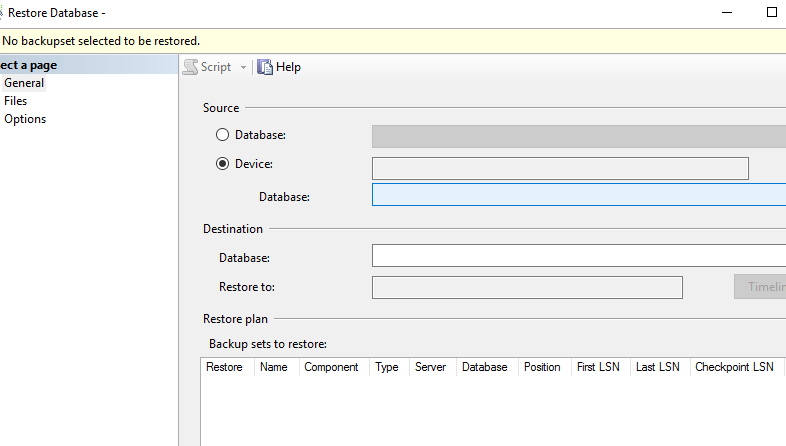
I then click the ellipsis to get a dialog allowing me to add files.
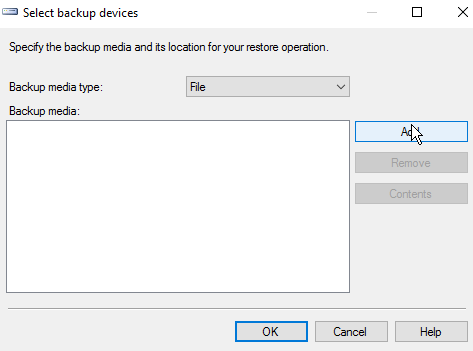
Hopefully you’ve done this before, and you can click “add” to add files. You need to naviate to the location of your backup files if it isn’t the default.

Next you can select the files. Holding down CTRL, I can multi-select files.
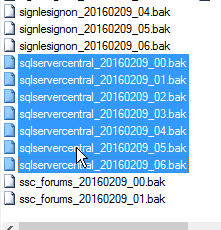
Once I pick them, I click OK and then I see them all in the device dialog.

Now I click OK and SQL Server reads the headers, and I end up with a single database to be restore, as shown below.
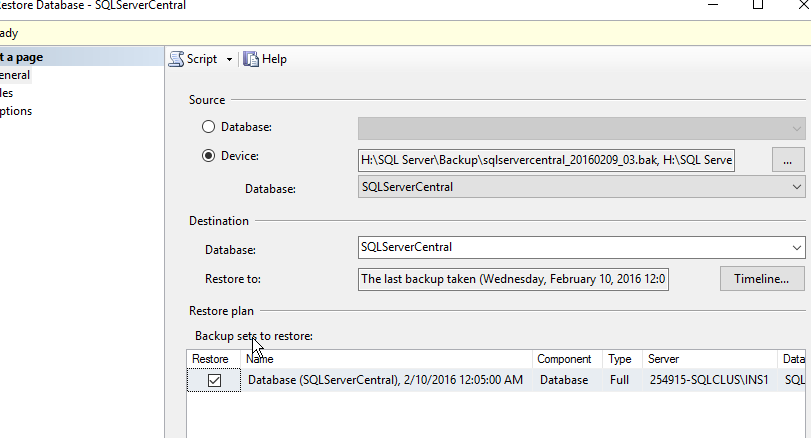
Now, I can click OK, and often do in development areas. HOWEVER, if you are doing this in production, please, please, please, click the Script button instead. You’ll get a new query window, and you can cancel out of this dialog to see the code.

From here, you should click “Save” and save this, then execute it.
As you can see above, the statement is simple. List each disk file, separated by a comma. Then the rest of the RESTORE statement is a standard restore.
SQLNewBlogger
This is a fairly simple task, one I’ve done dozens of times, but it’s worth practicing. If you want to write about it, what happens if you’re missing a file? What if you change the order of files? This was a 10 minute blog, and it’s a good chance to play and practice your restore skills, which are as important as anything you do as a DBA.




 Voice of the DBA
Steve – a great post as usual. I agreed completely with all of it. I did think you could have put a note in explaining why you would set this up as a script and save it. I appreciate that for non-Live environments this isn’t strictly required, but I try and insist on it as best practice for the non-DBA’s who can do this, so they are conditioned to do it on all the environments they have access to – and that does include Live in my case!
LikeLike
Thanks. Saving this is fine, and it can be helpful for Live environments. That wasn’t the focus on this post, but that would make a good one for another time.
LikeLike