
Another post for me that is simple and hopefully serves as an example for people trying to get blogging as #SQLNewBloggers. This is also a part of a basic series on git and how to use it.
A local repo is a repository, and is the version control system you will use locally. In a previous post I looked at cloning a repo. That’s a way to get code from others, but what if I want to start a new project?
That’s easy. This post will start a new project, save a few files, and show how to commit these to my git VCS.
Create a Repo
If you use tooling, there is usually a CREATE function somewhere, but at the command line, you can just do this:
git init
Assuming you’ve installed git, this will create a repo in your folder, and let you know it exists.
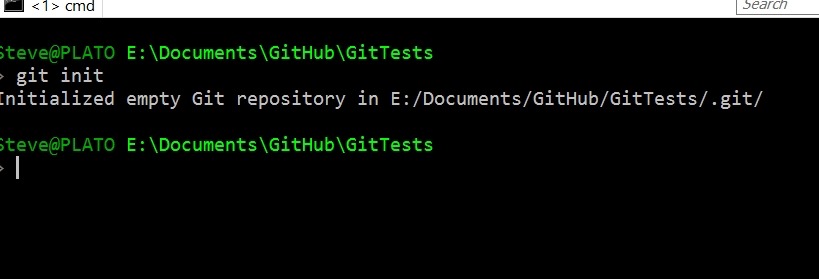
At this point I have an empty repo, and if I look in my folder, there’s a .git folder.

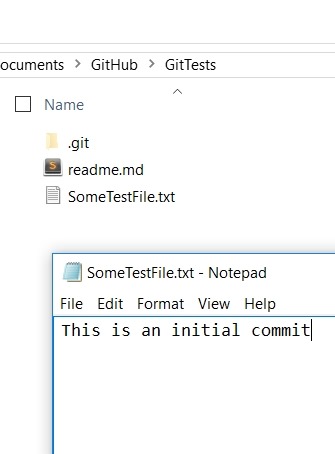
This folder will essentially control how this repo works on my system. Let me start by adding a couple text files. I’ll use a markdown file as a Readme, since I’ll eventually push this to Github and I like to have something there that makes sense. I’ve also got the contents of the text file here, which makes it easy to track what changes are being made and versioned.
Let’s now check my status:
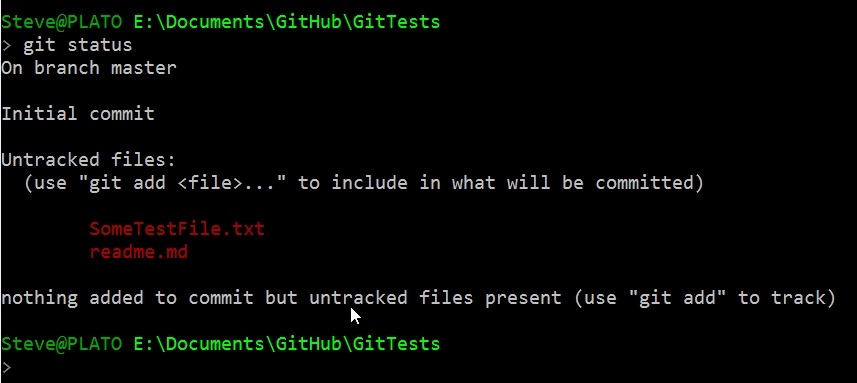
I’ve saved files here, but they aren’t being versioned. There’s not automatic tracking here just because I’ve saved files. This is something I need to do. Some tooling will do this for you, but it’s good to understand how this actually works. I need to tell git to track these files, so let’s do that.
First, I’ll add the files. I could specify specific files, but for now, I’m adding them all (both of them). Then I’ll check my status.
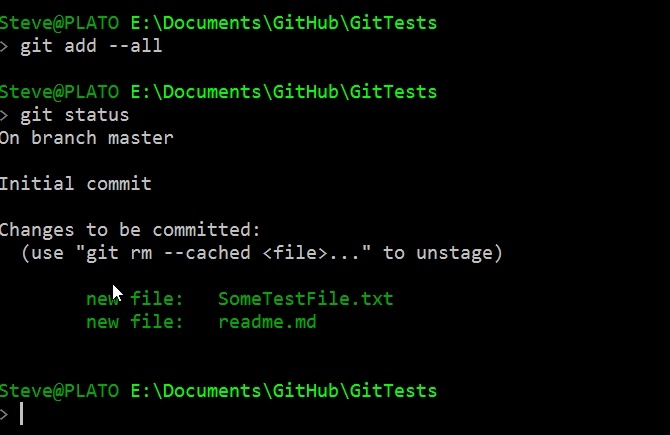
Notice the files are in green now. These are being tracked, and they’re “staged” for commit, but they’re not committed. Git sees these are new files, but the changes haven’t been saved.
I’ll now save the files with a git commit. I use the –m option to specify a comment on the command line. In another post I’ll show you what happens when you don’t do this.
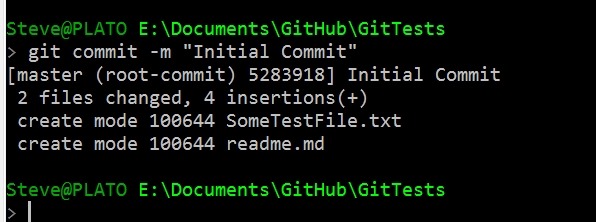
If I now look at status, I see nothing.
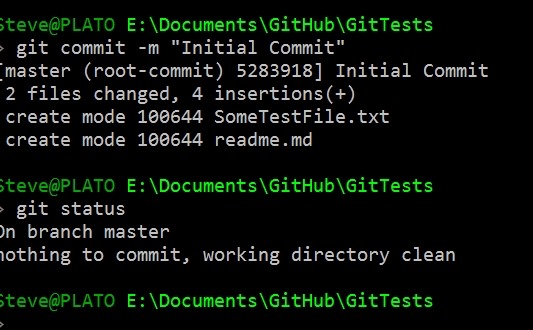
Why?
Git is concerned with changes and versioning. If everything is tracked, then git sees a clean directory and no files to commit. The files exist, but the version is not tracked in git.
Changes
I’ll make a change to a file and then we can see the effect. Here I’ll add text and save the file.
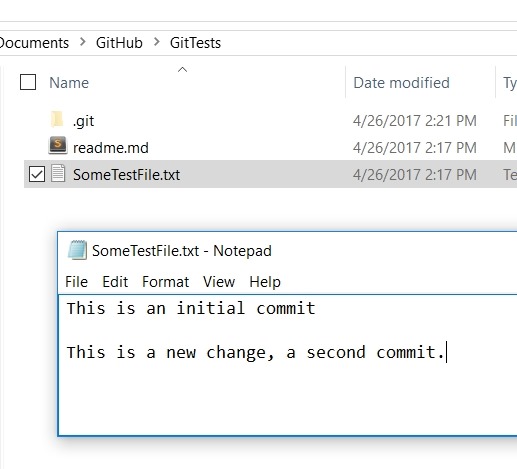
Now let’s check status. Below you’ll see I have a “modified” file, which I’ll then “stage” and add as something I want to commit.

Let’s now commit this.
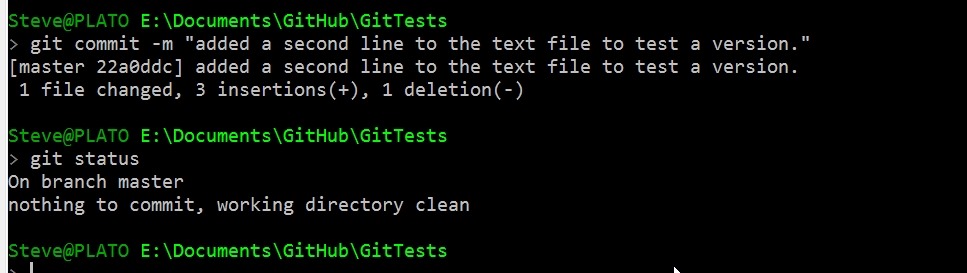
I can see that things are clean again, and my folder looks like I’d expect. The two files, one of which has two lines in it.
That’s really it for now. If you want to play along, download git, create a repo, and make some changes and commits. In another post, I’ll look at how I see the changes and get back to a previous version.
SQLNewBlogger
This was a quick post, about 10 minutes, as I practiced and experimented with things I know about git, trying to ensure I get them straight in my mind. That’s a good way to learn or improve skills in an area.
The hardest part in this post is trying to focus and stop writing.




 Voice of the DBA