
Azure Data Studio is the newest tool from Microsoft for working on the data platform. Last year we saw the preview release of this, called SQL Operations Studio. No one liked the name, and as the tools team at Microsoft worked to update the tool, they changed the name this year. At Ignite the rename and release was announced, and this is now a 1.x tool, available on Widows, OSX, and Linux.
If you search for Azure Data Studio, you should end up at this link:
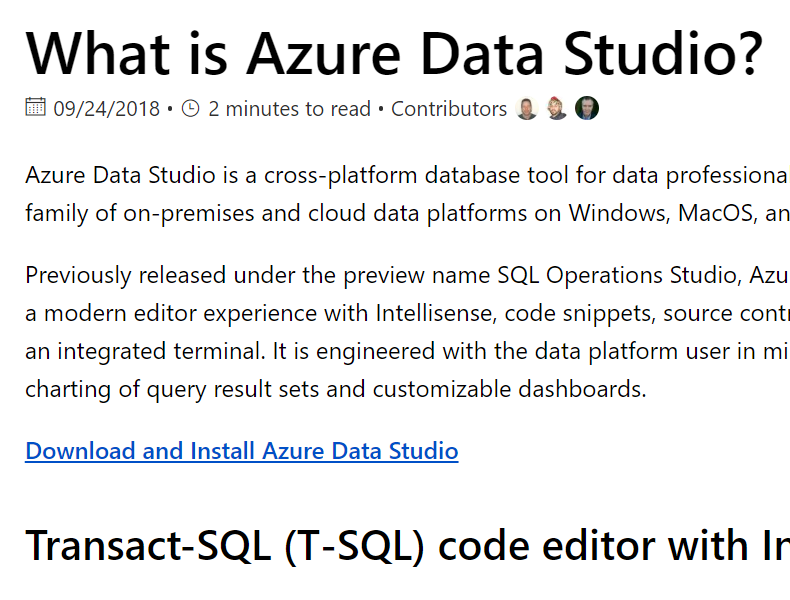
The download link has a series of installed. You can choose installers for all the platforms, in a series of formats. I picked the Windows installer.

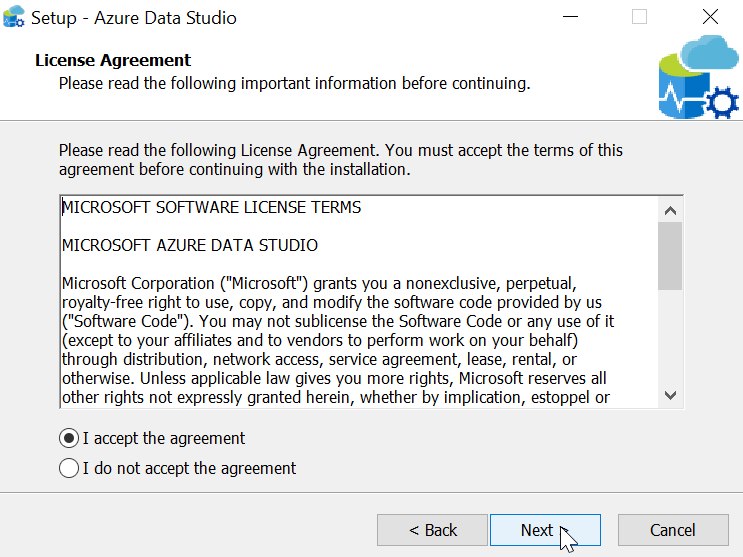
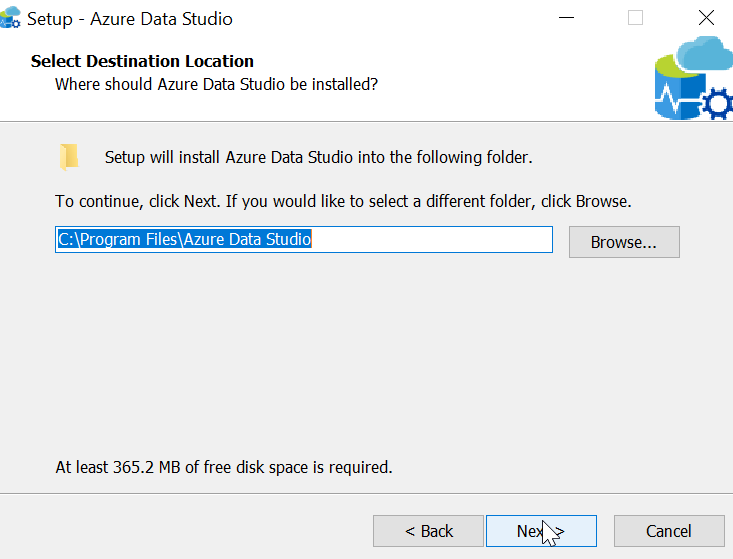
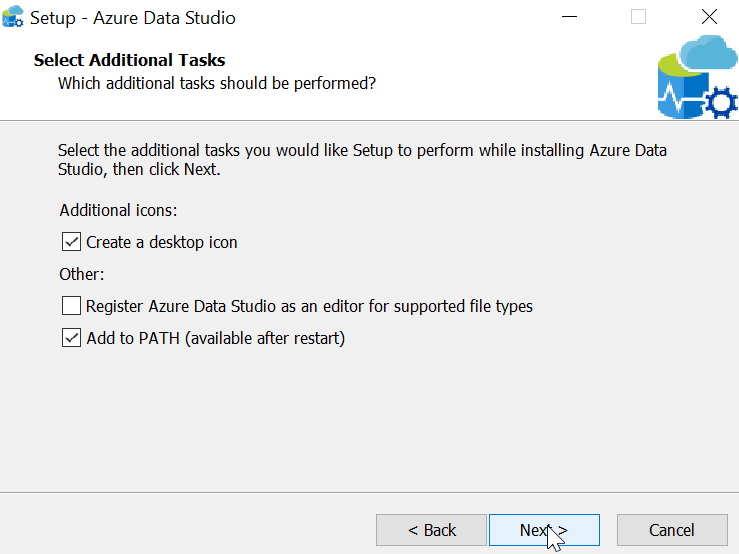
When you start the installer, you get a standard setup wizard. Here’s what you see, but these are all really next, next, next dialogs.




Running the Program
When you start Azure Data Studio, it opens with a large pane and a connection dialog. Before I can do anything, I need to connect.

I need to provide details, as expected, but I can optionally group my connections into a name. This is similar to the Registered Servers grouping I can do in SSMS. Here I’ve filled out some details, and given my connection a nickname for quick connections in the future.
 Once I click Connect, I get a dashboard when ADS makes a connection. At a glance, I can see a few things. This is the “Manage” widget that Microsoft provides. You can make your own if you like.

There are some mappings for keyboards, and CTRL+N (of File | New Query) gets me a query window. Some basic intellisense is here.
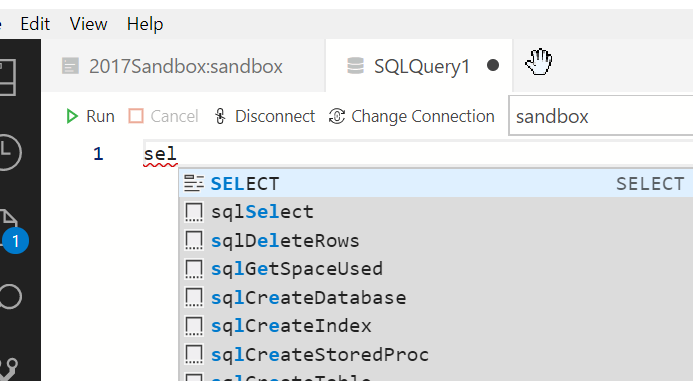
It’s no SQL Prompt, which I miss when I use this tool.

CTRL+E doesn’t work, so I need to click the arrow to run the query. That’s OK, but it’s not ideal. Fortunately, there’s an extension to help here.
The results are slightly odd for me, since I’ve used SSMS for so long, but they work fine.

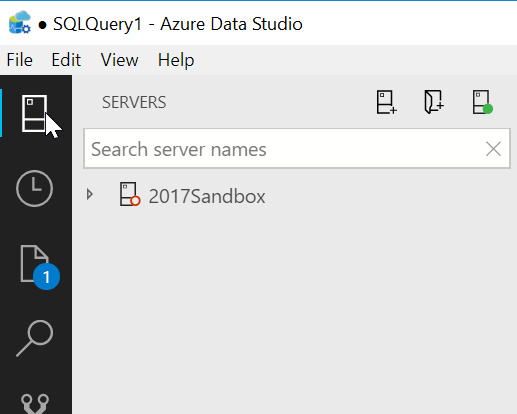
There is a column of icons on the left, the top of which is my list of server connections. If I click this, I see the list on the left side.
There’s lots more to do here, and you should experiment with this if you want a lightweight query tool. I’ll do a bit more work here, and see what I think, but I’m not sold on this for now as any sort of replacement for SSMS. I don’t know if MS will go that way, but for now, this still feels fairly bare bones.




 Voice of the DBA
Does F5 work to run a query? I’m still living the Ctrl-E life myself, but I know SSMS has the two ways.
LikeLike
F5 works.
LikeLike
I’ve recently switched to a Mac and am playing around with Docker and SQL 2017 for Linux on it. I just installed this the other day and am fumbling my way around. Having spent years on Windows and SSMS, this is taking some time to get used to. I think Azure Data Studio is just okay for now and I really hope they flesh it out some more so I can use it more efficiently in the future.
LikeLike
I’d agree. For now it’s an odd structure, not quite like VS Code and certainly not like SSMS. It takes some getting used to, and I’m also not sure how well it really works for me.
LikeLike