
I wrote a post about the online recording, which wouldn’t work for me. This post looks at the live recording for me, giving you my process and time.
This doesn’t cover the building the deck, setting up demos, or practice time. That’s the same for every presentation for me.
First Take
The first take was a mess, since I didn’t have some things set up or my hair combed, and I mangled the opening slide, so after 2 minutes, I just abandoned it.
Second Take
This was really a live practice for me, mostly to tech check and get timing down. It’s always different when you do it live. I didn’t bother getting my shirt, so this was at the end of a normal workday.
I had some Internet issues, so I couldn’t keep this anyway, but it was annoying to get some missing pages, and delays in refreshing. I had to refresh in Azure DevOps a few times to get the site to come up. I use microwave Internet, so if the air is bad things can be slow or drop. With a fire near Denver, that was happening, but you should be glad here that if you have Internet issues, which could happen in the convention center, you couldn’t rerecord.
My timing was long as well, about 5 minutes over, so I took a few notes to help me get better for the next time.
I did load this into Camtasia and check the sound and view. I also wanted to play with splitting the camera track and having it visible sometimes and not others. Easy to do, and I need to remember that I’ll watch this whole thing, plus render it, so I need to account for probably a 3 hour process.
Third Take
A day later, I had some time, so I set thing up, reset my demo, and started to record. Overall this was one take, but two pauses, so my recommendation is that you know where the pause button is on your recorder.
1. I forgot to pre-stage one item in the demo, and realized it, so at the end of a slide, I paused, staged an item, and restarted. Pausing at the end lets me move to the next slide and start more naturally.
2. I had to sneeze, so I stopped talking and quickly hit pause.
Editing
Camtasia does a picture in picture when you record with the camera, which is what I wanted. However, I didn’t want to have that up the whole time. I wanted a larger insert, and then at times, to hide it.
This is easy, so as I watched for issues, I would pause, split the camera feed, and either resize it or move it out of the way. Took maybe 5 minutes on top of the 53:00 to watch my recording.
Uploading
Once things were done, I looked again and then uploaded it. My file was 688MB, more than a CD! I started the upload, and I initially got about 2.5M/sec, and the upload noted that this would take 5 minutes or so. That didn’t see right to me.
The upload somewhat froze in the pop up window with 3:57 left, and stayed that way for a few minutes, with 11% done. However, at about 4:45 total, the window closed itself and I got a confirmation email that the session had been uploaded.
Watch the Details
My task was noted as completed on the main page when I first went here.
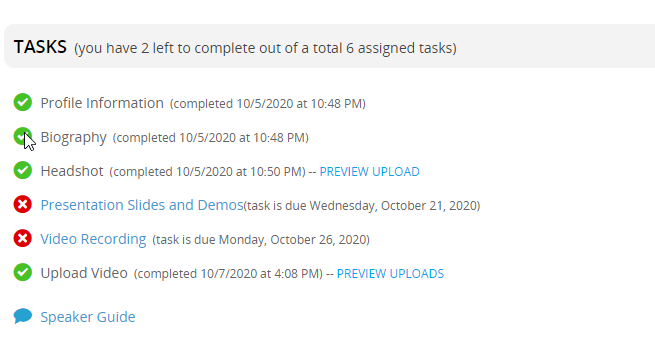
Even if I click the Upload Video link, I see this:
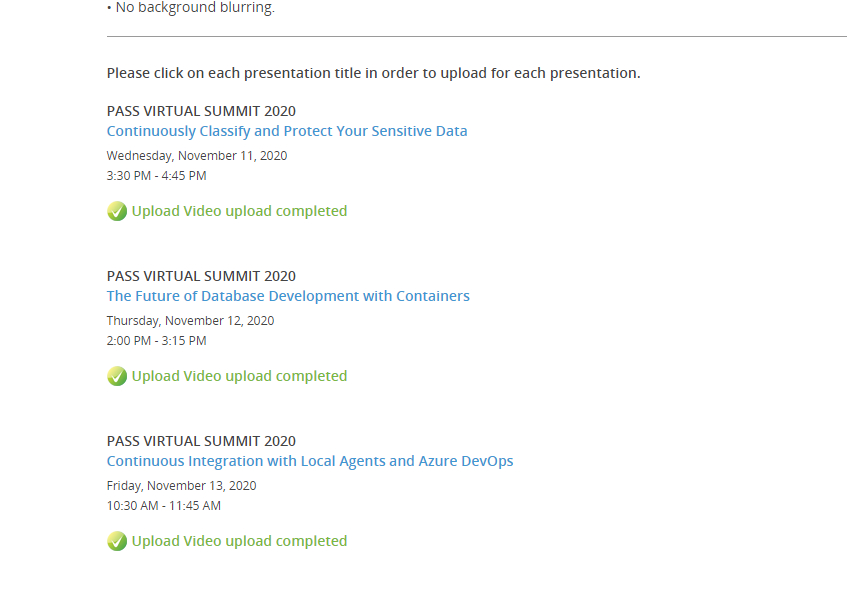
I had only uploaded one video at this point, so this interface doesn’t properly handle multiple sessions. If I wasn’t careful, I’d think I’d already uploaded everything. Since I’ve only recorded 2, this isn’t right.
If I return to the main page and click “Preview Uploads”, I see this.
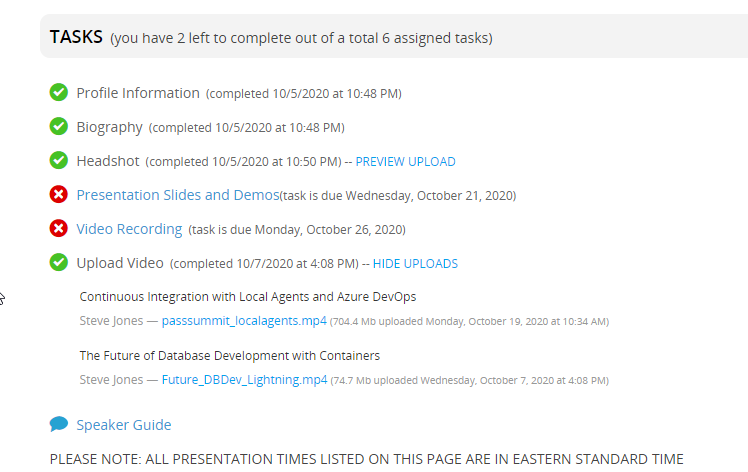
Two are uploaded, and the task isn’t really completed. I wish there were some yellow indicator for partial completion here.
I did go into the “Record video” for another session, and there I can mark the item as an upload.
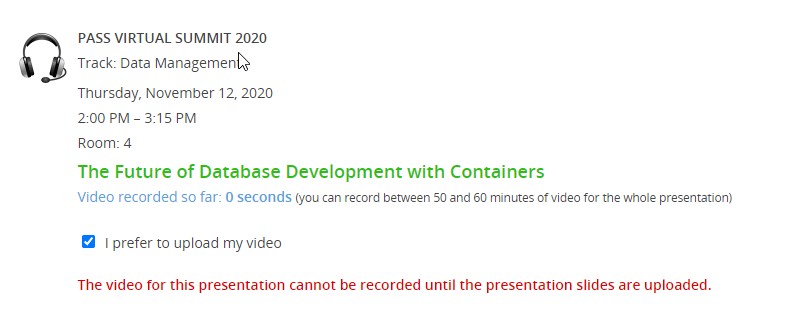
This gives me a better view of what I’ve done.
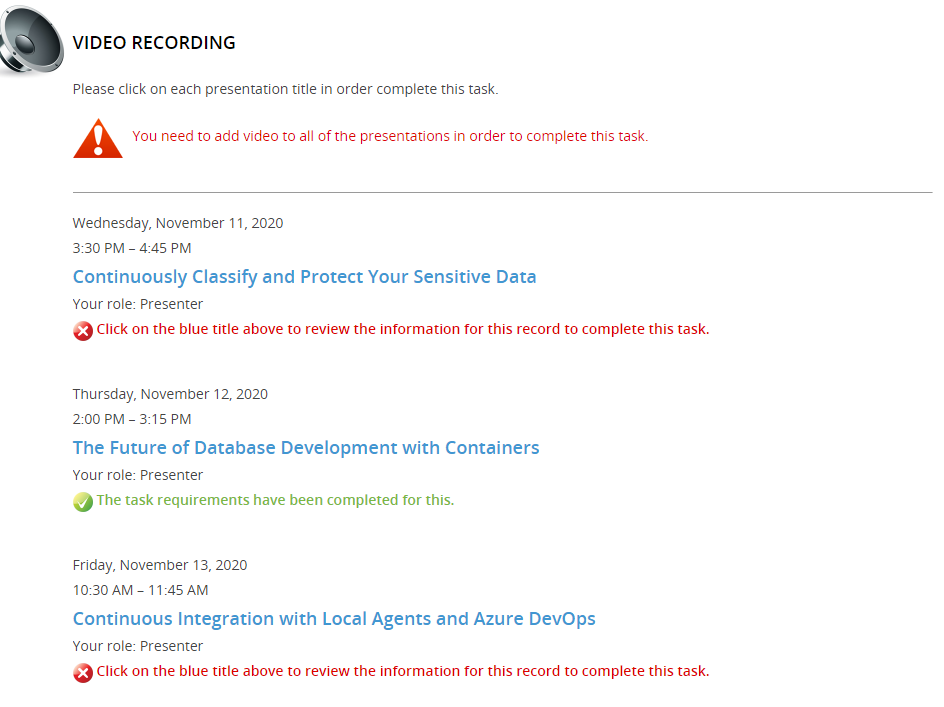
Pay attention to what you’re doing. This is a good set of tools in one sense, but a little incomplete, and slightly misleading. A few things to improve:
- Details for slide uploads, consistent with the video recording
- Upload video doesn’t properly show status
- Status for partial completion.
The slide details do show in in that page, but I have to walk through each section to double check. Do that. We want to look good at the event, and part of this is speakers doing a good job of checking their work.



 Voice of the DBA