Tag: mysql

  • Moving Away From MySQL

    I like SQL Server as a database. I think it’s very complete, solves most of my problems, and is easy to use in work. It costs money, but less than some others. It’s also more complete to me than some of the open source databases out there. That being said, I think most of the top five or six relational platforms would work for me and I wouldn’t hesitate to use them.

    I ran across a post from Steinar Gunderson, who worked at Oracle on the MySQL team. It’s on his last day there, and it’s a bit of a why did he leave. I like that he notes he found a better opportunity, but he digs in deeper. Why did he look for a new opportunity?

    The answer seems to be that MySQL was a shockingly primitive piece of software, according to him. He felt there was lots of room for improvement and change, but people seem to like and accept what MySQL is and does. He is proud of what he has done, but felt that this was a product that was vastly inferior to other database platforms.

    That’s interesting, because I think MySQL works fine and is in use in many situations. While there might be plenty of things that can be improved, I’m a practical guy. If the technology meets my needs, and those I can foresee, I see no reason to change. That being said, I wouldn’t reach for MySQL to start a project. If it wasn’t SQL Server, I’d lean towards PostgreSQL.

    There are a couple of examples in the post, and it’s certainly a good post to write on your last day. If you published it when it wasn’t your last day, it might quickly move in that direction.

    If you use MySQL, I’m curious what you think. If you don’t, would you if SQL Server weren’t available? Would you learn MySQL for a new job? Or are you a die-hard, this is my platform kind of person?

    Steve Jones

    Listen to the podcast at Libsyn, Stitcher, Spotify, or iTunes.
  • Use the Proper User for Azure MySQL DB

    I wrote about migrating the MySQL database from a third party provide to Azure MySQL DB recently. This was due to the provider raising the price substantially for me to host the site. However, after migrating the data, I ran into an issue.

    I’d read a blog on moving WordPress data and followed the instructions, but after updating my connection string, I kept getting this at tsqltuesday.com

    Error Making Database Connection

    It appeared big and bold in the browser, with no additional information. There was a time I dug into MySQL, but it’s been a long time. In any case, I wasn’t sure what the issue was, so I started messing around.

    In MySQL Workbench, I could add a new user with their GUI and grant privileges. I did this for a user called “tsql2sday”, with a password. However, when I updated the connection string in my Azure App Service, this didn’t work.

    I tried a number of items, including manually creating my own user and assigning privileges, making this a DBA (super) user, and more. Nothing seemed to work. Some of you might have even seen the error messages as I tried to get this to work.

    Eventually I checked something. In the original app service connection string, my old third party database just had the user name. This was the same for my connection in MySQL workbench. However, with my new Azure MySQL database, I needed user@dbname. For me, this was tsql2sday@tsqldb in MySQL Workbench.

    Once I added the @ and host to the connection string in the App Service, I could connect. Whew, as I wasn’t looking forward to another hosting bill.

    I think all the data is there, but if you find issues with tsqltuesday.com, let me know.

  • Migrating MySQL Databases

    A little out of my area, but I need to move the tsqltuesday.com database to a new service. The company running the db decided that they don’t want to keep a lower level consumer type tier. Since their minimum plan is now $20/month, I decided to look elsewhere. My first move was to try Azure Database for MySQL. This is a quick look at moving the MySQL data.

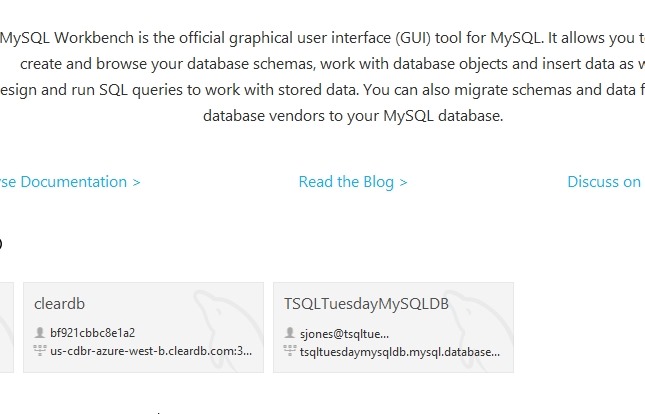
    I have MySQL Workbench, so I started that up. I saw a note that this contained a migration wizard. I first created a MySQL database in Azure, which is really simple. Then I created two connections from MySQL Workbench. One to the existing database and one to my new one.

    2018-02-08 13_50_54-MySQL Workbench

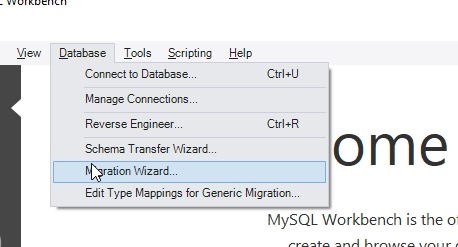
    The next step was to start the Migration Wizard. This is under the Database menu.

    2018-02-08 13_51_07-MySQL Workbench

    As with all wizards, this opens with a welcome page.  I clicked Start Migration to get going.

    2018-02-08 13_51_24-Why GDPR Will Fast Track the Fourth Industrial Revolution _ HuffPost

    The wizard is fairly simple. Once I had this working, I walked through the wizard, choosing my source and destination. This was a simple process and things connected up once I’d opened the firewall.

    2018-02-08 13_51_58-MySQL Workbench

    After verifying connections, I selected everything. Since this is a WordPress site, it’s a fairly small schema and set of objects.

    2018-02-08 13_52_21-MySQL Workbench

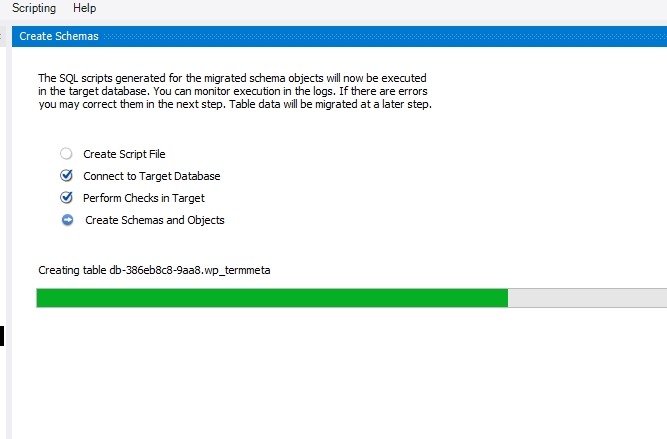
    I basically clicked next, next, and let everything transfer. This only took about 5 minutes.

    2018-02-08 13_52_40-MySQL Workbench

    Once this was done, I queried the database, and everything was working. I saw my data and it appeared complete. No errors, so I assumed things were correct. Row counts seemed to verify this.

    2018-02-08 13_55_58-MySQL Workbench

    This was pretty simple, perhaps even easier than using SSIS and the Copy Database Task since this was built in.

    Now to figure out how to re-point the application.


  • The World of MySQL

    I had two different people ping me on the same day with MySQL questions. One was a former co-worker, asking for some query help, and one was from the Boy Scouts of America, also asking for some query help for a few reports. Strange that both requests came on the same day.

    I didn’t have a MySQL install on the latest incarnation of my desktop or laptop. I did pop MySQL Workbench on a laptop last year, playing with Azure deployments, but no server. I deployed a MySQL instance on an Azure VM, but I had trouble connecting. Either the Ubuntu instance didn’t have the MySQL ports open (should have in the template), or I typed the password wrong. Either way, I just decided to delete that resource group (I love resource groups) and download the MariaDB server.

    It’s a standard download from Mariadb.org and it’s not too large. In fact, it took longer to download than install.  The install was a standard msi installer, and ran in a minute or two.

    2017-07-26 19_56_54-MariaDB 10.2 (x64) Setup

    From there, I started up MySQL Workbench, which I’d downloaded and installed. I entered my user and password, using the default ports for the server.

    2017-07-26 19_57_13-Setup New Connection

    And things worked, as they should in 2017.

    2017-07-26 19_57_29-MySQL Workbench

    From there, I selected the data import and chose the file I’d been sent. It was (supposedly) a MariaDB dump, but listed as a .sql file. Looking through it, it has SQL and data inserts, so I ran it with the Data Import.

    2017-07-26 19_59_06-MySQL Workbench

    This ran for less than a minute and things were complete.

    2017-07-26 20_03_19-MySQL Workbench

    And sure enough, some MySQL syntax (googled to remember) works.

    2017-07-26 20_04_53-MySQL Workbench

    Now to debug some queries for a friend.