Using SQL Data Compare with Joins

Recently a customer was asking about how they could move data with SQL Data Compare from one server to another. In this case, the customer had a complex join and WHERE clause they wanted to use with SQL Data Compare. This post will show a simple way to do this.

The Source Data

I can’t show customer data, but here is a mock up using the AdventureWorksDW sample database. I have this query that contains some information I want to sync from one database to another:

SELECT c.FirstName,
        c.LastName,
        dd.FiscalQuarter,
        dd.CalendarYear,
        fis.OrderQuantity,
        fis.SalesAmount,
        fis.PromotionKey
        fis.SalesOrderNumber
FROM dbo.FactInternetSales fis
     INNER JOIN dbo.DimDate dd
         ON dd.DateKey = fis.OrderDateKey
     INNER JOIN dbo.DimCustomer c
         ON c.CustomerKey = fis.CustomerKey
WHERE ProductKey = 310
       AND dd.CalendarYear = 2011;

This query includes multiple tables and a WHERE clause. In SQL Data Compare, there is no place to enter a query to use as a source for data. None of these sources allow for a query.
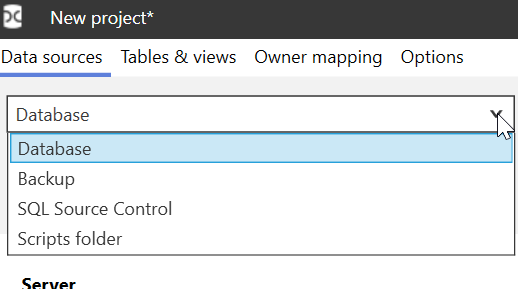
2021-10-01 15_54_16-New project_

I can, however, simulate this query in a view. I add a line above the code and I have a view.

CREATE VIEW aDemoView AS
SELECT c.FirstName,
        c.LastName,
        dd.FiscalQuarter,
        dd.CalendarYear,
        fis.OrderQuantity,
        fis.SalesAmount,
        fis.PromotionKey
        fis.SalesOrderNumber
FROM dbo.FactInternetSales fis
     INNER JOIN dbo.DimDate dd
         ON dd.DateKey = fis.OrderDateKey
     INNER JOIN dbo.DimCustomer c
         ON c.CustomerKey = fis.CustomerKey
WHERE ProductKey = 310
       AND dd.CalendarYear = 2011;

I then need to check the option in the SQL Data Compare project to include views.

2021-10-01 15_56_10-New project_

Once I do this, I see my view, although it is unmapped. Note views are at the bottom of the dialog.

2021-10-01 15_57_36-New project_

Now I need a target.

Make a Table From the View

In the destination database, I need a comparison target. In this case, what I would do is take the definition of the view and use that to create a table. In this case, I’d start with the SELECT column list. I replace SELECT with CREATE TABLE, as shown here:

CREATE TABLE DemoView
(
        c.FirstName,
        c.LastName,
        dd.FiscalQuarter,
        dd.CalendarYear,
        fis.OrderQuantity,
        fis.SalesAmount,
        fis.PromotionKey,
        fis.SalesOrderNumber

Next, I need to remove the aliases and round out the data types.

CREATE TABLE DemoView
(
        FirstName varchar(100),
        LastName varchar(100),
        FiscalQuarter tinyint,
        CalendarYear int,
        OrderQuantity int,
        SalesAmount NUMERIC(10,4),
        PromotionKey TINYINT,
        SalesOrderNumber VARCHAR(20)
        )

Last, I will need a comparison key, so I’ll add the SalesOrderNumber as a PK.

CREATE TABLE DemoView
(
        FirstName varchar(100),
        LastName varchar(100),
        FiscalQuarter tinyint,
        CalendarYear int,
        OrderQuantity int,
        SalesAmount NUMERIC(10,4),
        PromotionKey TINYINT,
        SalesOrderNumber VARCHAR(20) CONSTRAINT DemoViewPK PRIMARY KEY
   )
GO

I execute this in my target database and this gives me a destination for the data.

The SQL Data Compare Map

Once I have a source and target, I can map them in SQL Data Compare. First, I select both objects in the Tables and Views tab and then click Map.
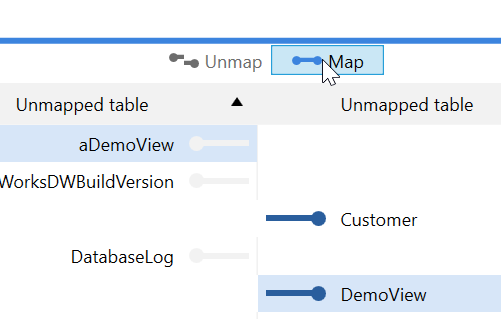
2021-10-01 16_07_03-New project_

This moves the two items up to the top pane.
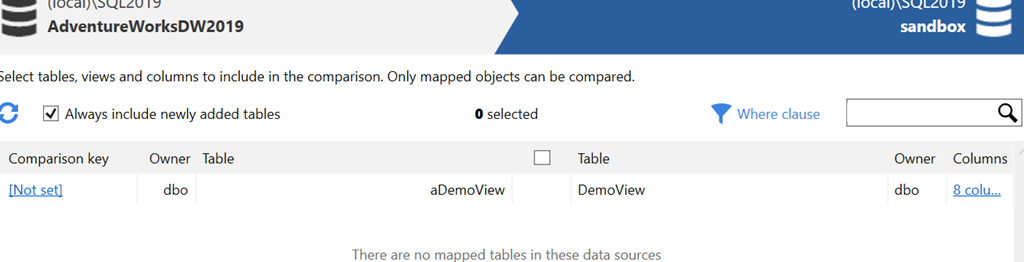
2021-10-01 16_07_26-New project_

I need a comparison key in order to move data, and I select the “Not Set” on the left side. This gives me a place to set the comparison key. We need to know how to determine which rows are different from which other rows.
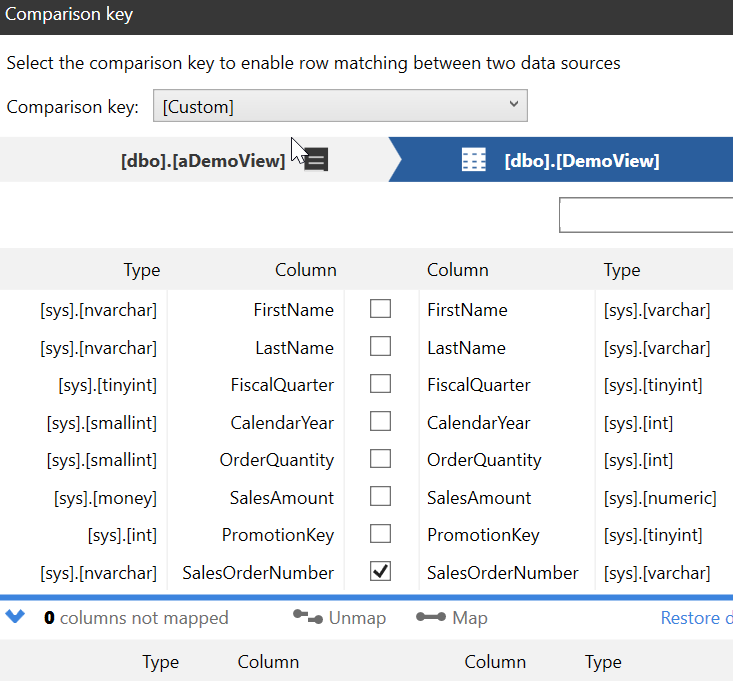
2021-10-01 16_11_05-Comparison key

Once this is done, I click the item in the main pane and click “Compare”.

2021-10-01 16_11_13-New project_

When this completes, I see my results. This table is shown as different, and I see the rows below.

2021-10-01 16_15_19-SQL Data Compare - New project_

All of these rows are only in the source, which is the left side. I can click “Deploy” and get a script to move all this data to the other server.

Options

In this case I had a fairly specific set of data in the view with a WHERE clause. If I wanted to keep this more generic, I could always use the WHERE clause in SQL Data Compare to select a set of data to move here.

The other option would be to SELECT .. INTO  this data into a table on the source. I could load this into a table that I used for a comparison with the target. If I repeated this in the future, I could either truncate and reload this table, or just add to it, potentially with a different SELECT.

In general, I prefer to bulk move information and control the data to move outside of SQL Data Compare. It’s easy to forget to change a WHERE clause somehow in a project. Much easier to control what I load into the source and then move everything to the destination.

Summary

The easy way to move complex data from source to destination is by putting the complex data into a source location. Either a table of some sort or a view. Then we can use SQL Data Compare to easily move this to a destination in another database.

SQL Data Compare is an amazing product for syncing sections of data between databases. It might not work for all situations and can be slower with very large sets, but it’s a fantastic tool for DBAs.
Posted in Blog | Tagged , , | Comments Off on Using SQL Data Compare with Joins

Location Data Is Not Anonymous

We are truly in the era of big brother and 1984, where any of us can be tracked if we use a mobile device. That’s a scary thought and one that many people might not like. There are plenty of people in management that want to increase revenue or profits from the use of data, even if we might think their decisions are unethical or immoral. When there’s money to be made, often they ignore other issues.

There was a post from Bruce Schneier earlier this summer that noted various public data, some sold by brokers, was used to track location and usage of a device by de-anonymizing aggregated data. The post ends with these statements:

“Location data is not anonymous. It cannot be made anonymous. I hope stories like these will teach people that.”

That’s a somewhat scary thought. While I like knowing where my loved ones are, I’m not sure I want any random person to be able to track me with public information. Unfortunately, that is unlikely to be the case in the future. Lots of the data we have rarely worried about being public is much easier to access when records become available digitally to anyone. They ability to work with large amounts of data allows anyone with a connection to gather information that might be used in ways we never imagined.

For me, public records of property at the most annoying, as I constantly get unsolicited real estate offers to buy houses. For others, there could be concerns about safety, stalking, or other nefarious purposes. Swatting and other forms of harassment are far too common in the modern world.

While many might see the GDPR, and similar laws, as too restrictive for businesses and government, I think privacy is more important than ever. We ought to have more strict regulation on the use of data about humans, and force companies to obtain consent, allow it to be revoked, and be forced to properly manage and secure our data.

This doesn’t just apply to location data, but any data about humans. I hope the future becomes a place where we globally consider digital privacy a human right.

Steve Jones

Listen to the podcast at Libsyn, Stitcher, Spotify, or iTunes.

Posted in Editorial | Tagged | Comments Off on Location Data Is Not Anonymous

Quick Database Copies and Branching with Spawn

I delivered a talk last week at the Future Data Driven summit. It’s one I’ve done a few times, but I really enjoy it. It’s on the Future of Database Development, where I present a view of where I think, and hope, database development goes.

Part of this is using the Spawn service and a neat demo a few of the Redgate Software developers came up with. In this post, I wanted to just share a neat pattern that is in the demo.

Visual Studio Code and F5

The demo is in Visual Studio Code. I can git clone a repo and then open it in VS code. I authenticate to the spawn service and then press F5 to compile and start debugging. When I do this, I see as part of the output, this text:

2021-09-28 12_53_36-Welcome - spawn-demo - Visual Studio Code

This indicates that my database containers, 2 in this case, already exist and are being used. This app has some startup code in it so that any developer who clones the repo can just start running the app and writing code without worrying about what database software is installed on their machine.

If I check the Spawn service from the command line, I see my two database containers. In this case I am using these containers from the main branch. Hence the images (demo-todo and demo-account) get the branch added to the end.

2021-09-28 12_56_00-cmd

Changing Branches

In application software, we often create a branch to start doing our own work. With databases, this might involve either re-using the same database(s) in the new branch, or doing a copy (rebuild, restore, etc.) to have a clean version of a database.

With Spawn, I just create a new branch in VS Code. Then I click F5 again. Now I see that I need new containers. These are created with the branch name. Therefore I see demo-todo-demosteve and demo-account-demosteve as the new containers.

2021-09-28 12_57_56-Window

Coding in the project setup gets the credentials and ensures the app just works.

The Future

I think the future of better database development, especially for those “full stack” or application developers, means provisioning new databases as needed. This likely requires containers, and hopefully, a service.

We’ll see if we get there, but I do think a lot of the trends in software development are there to try and ensure we can reduce the hassles of building new environments on developer machines.

Posted in Blog | Tagged , , , | Comments Off on Quick Database Copies and Branching with Spawn

Daily Coping 4 Oct 2021

I started to add a daily coping tip to the SQLServerCentral newsletter and to the Community Circle, which is helping me deal with the issues in the world. I’m adding my responses for each day here. All my coping tips are under this tag.

Today’s tip is to enjoy photos from a time with happy memories.

Last year in June, during the lockdown, I had all my kids with my when we went camping in South Dakota:

20200625_171921

The June before we were all in New Zealand, looking out towards Antarctica from Dunedin.

20190605_122226

The June before that, 2018, we went to the Painted Mine park in Colorado:

IMG_20180528_140440

Two years before that, we were camping in Grand Lake and riding horses.

IMG_8319

June memories have been good. Not sure why I picked that month, but those photos came to mind recently.

Posted in Blog | Tagged , , | Comments Off on Daily Coping 4 Oct 2021