Daily Coping 11 June 2021

I started to add a daily coping tip to the SQLServerCentral newsletter and to the Community Circle, which is helping me deal with the issues in the world. I’m adding my responses for each day here. All my coping tips are under this tag. 

Today’s tip is to get out into a green space and enjoy nature.

I got to do this on holiday recently. My wife and I went to Key West, and we took a day to kayak around mangrove swamps. It was surprisingly fun, and it was neat to be in nature, quite separated from everything else. Going through the tunnels in the forest was quite an experience.

20210607_145213

Peaceful and quiet, almost like being in another world.

Posted in Blog | Tagged , , | Comments Off on Daily Coping 11 June 2021

Daily Coping 10 June 2021

I started to add a daily coping tip to the SQLServerCentral newsletter and to the Community Circle, which is helping me deal with the issues in the world. I’m adding my responses for each day here. All my coping tips are under this tag. 

Today’s tip is to think of three things you are grateful for this month and write them down.

In the last month, here are a few things I’m grateful for:

  • my wife – she’s supported me, challenged me, taught me, and helped me enjoy life the last month.
  • kids – they all are home for a short period, which is nice. This doesn’t happen often as they are adults.
  • health – despite getting older and things not feeling good, I’m thankful I can still do a lot of the things I want to do. Got to bike, kayak, and yoga on holiday recently, and did better than a lot of people younger than me.
Posted in Blog | Tagged , , | Comments Off on Daily Coping 10 June 2021

Setting up a Full Text Index–#SQLNewBlogger

Another post for me that is simple and hopefully serves as an example for people trying to get blogging as #SQLNewBloggers.

I saw a question recently on  Full Text Search. I knew the answer, but to test some code, I had to reset up an index, which took just a minute, but I decided to write about it. This post gets the basics of setting an index.

Setup

A full text index allows you to search a little more freely than standard T-SQL with a LIKE or wildcards. It’s useful for going through large amounts of text, mainly hundreds or thousands of words.

To get started, you need to know a few things. First, this system in modern SQL Server (2008+) is set up on all instances. You don’t enabled FTS like you would for In-Memory OLTP tables or FILESTREAM.

Next, you need a catalog for the FTS indexes, which is a logical container.

Next, a table with data.

Finally, you create the index. In this post, I’ll look at SSMS and the GUI. In another one, I’ll look at the T-SQL itself.

Using SSMS

The quick way to get started is to right click your table. As noted, the database is already enabled for FTS. In the right click menu, there is a Full-Text index section, and under there there is a “define” choice, as shown here.

2021-06-09 11_51_25-

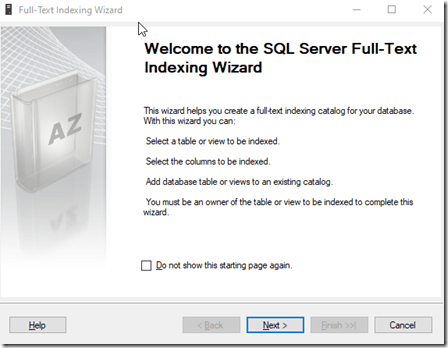
Click that and the wizard will start. The intro screen appears, and you can click next.
2021-06-09 11_52_11-Full-Text Indexing Wizard

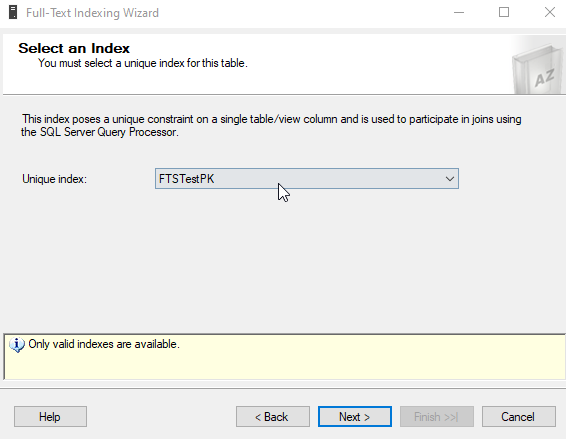
A unique index is required, and the next step let’s you pick the one you want to use. This allows the various FTS query items to return the key value used here in the index. In my case, I only have a PK, but if you have unique indexes, you can choose any one.

2021-06-09 11_53_38-Full-Text Indexing Wizard

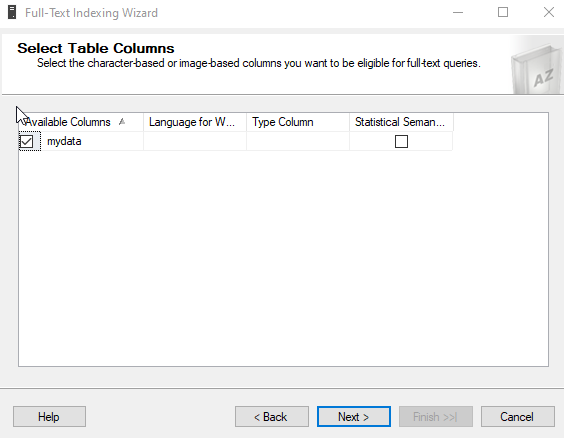
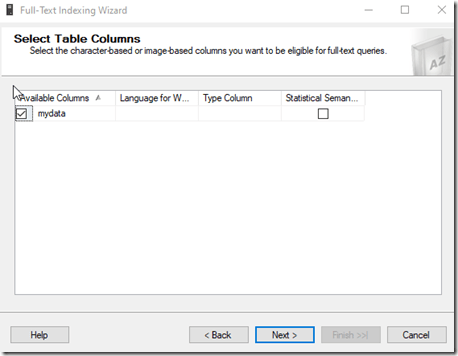
The column(s)  you want to index need to be selected. I only have one here, but you can choose any, or multiple, character or image based columns. Image would be binary columns that might contain something like a Word document.

The statistical semantics are used to extract key phrases from documents. For basic FTS of character data, you wouldn’t use this, but if you are searching things like PDFs, Word, etc., you might enable this.
2021-06-09 11_56_29-Full-Text Indexing Wizard

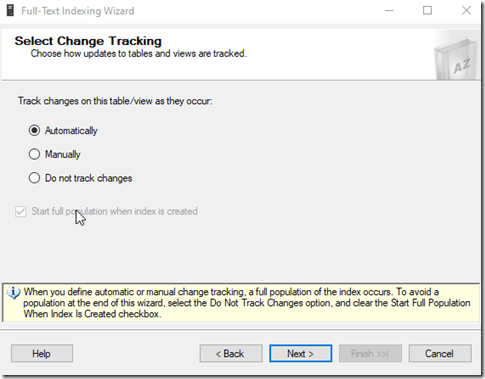
If you want to track changes as the data changes and update the index, choose auto or manual.
2021-06-09 11_56_58-Full-Text Indexing Wizard

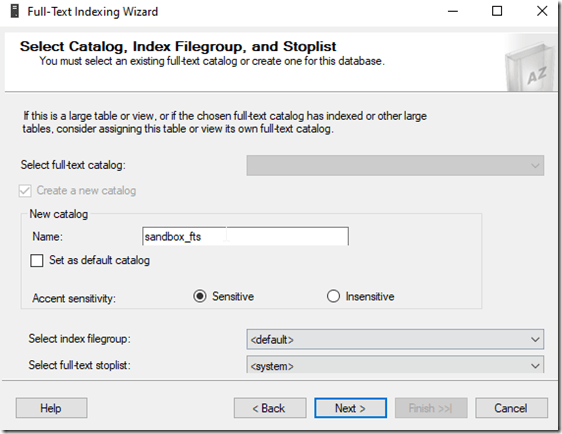
The next page is where you assign this to a catalog. This is where you can create one if necessary. You can also choose a different filegroup for storing the index, and set the sensitivity for accents and choose a stop list. If you don’t know these terms, something to look up (and blog about).
2021-06-09 11_58_16-Full-Text Indexing Wizard

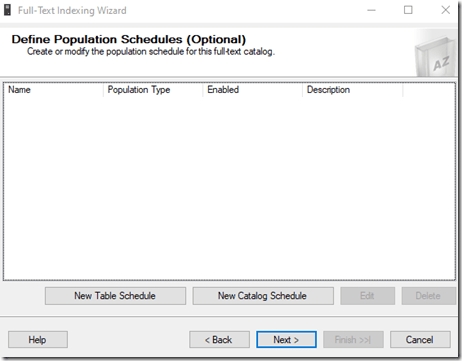
The next step is the population schedule. This is the place where you decide when the index is updated. You can allow the system to run when it detects changes if this isn’t a lot of data, or you can schedule this. Large indexes with lots of data can take time and consume resources, so some instances need this scheduled during low workload hours.

I tend to ignore this for demos.
2021-06-09 12_00_02-Full-Text Indexing Wizard

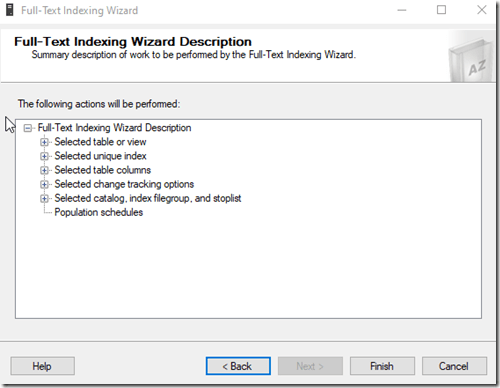
You get a final summary of everything. You can check each item and go back if necessary to fix something. Or click finish.
2021-06-09 12_00_13-Full-Text Indexing Wizard

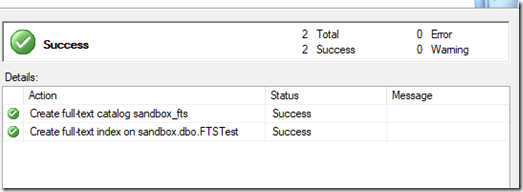
For my small demo table, this completed quickly.
2021-06-09 12_00_20-Full-Text Indexing Wizard

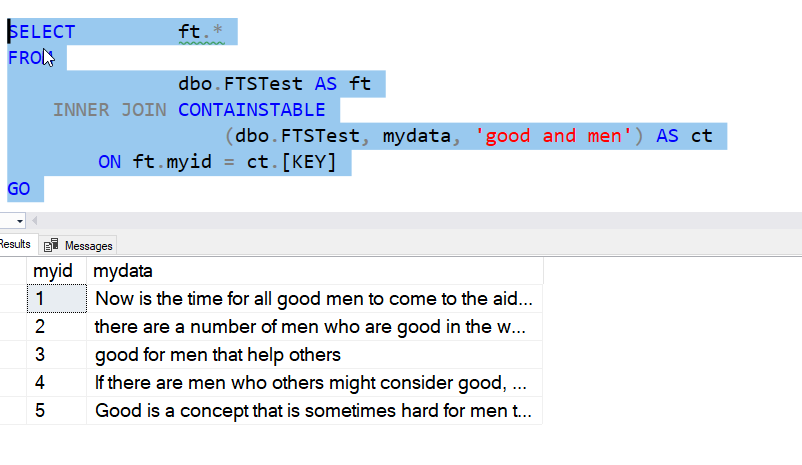
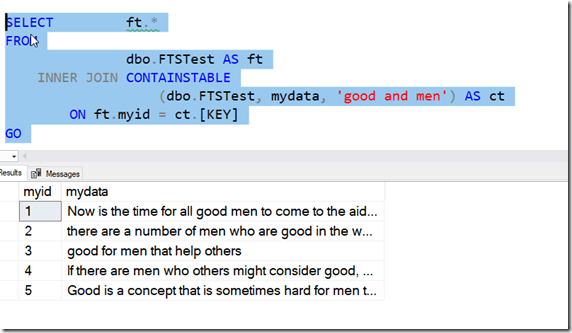
From here, I can run queries using CONTAINS() or other terms, as shown below.
2021-06-09 12_02_15-SQLQuery1.sql - ARISTOTLE_SQL2017.sandbox (ARISTOTLE_Steve (61))_ - Microsoft SQ

If you want to follow along, here’s the table setup I used.

CREATE TABLE FTSTest (
myid INT NOT NULL IDENTITY(1,1) CONSTRAINT FTSTestPK PRIMARY KEY
, mydata VARCHAR(MAX)
)
GO
INSERT dbo.FTSTest (mydata)
VALUES ('Now is the time for all good men to come to the aid of their country'),
('there are a number of men who are good in the world'),
('good for men that help others'),
('If there are men who others might consider good, we should support them'),
('Good is a concept that is sometimes hard for men to comprehend'),
('Good is a concept that is sometimes hard for anyone to comprehend')
GO

That’s a quick setup. I’ll look at queries and the T-SQL setup in another post.

SQLNewBlogger

This post was the first of a few that I made after solving a problem for someone. I took my 10 minutes of code writing and added about 10 minutes each for a few posts, including this one.

A good way to break down a problem into a few posts and get a few weeks worth of content that shows your knowledge and learning.


Posted in Blog | Tagged , , | 3 Comments

Setting DebugPreference for Testing–#SQLNewBlogger

Another post for me that is simple and hopefully serves as an example for people trying to get blogging as #SQLNewBloggers.

I was working on a PoSh script recently and needed to debug some things. Rather than have Write-Host throughout it, I wanted to log some stuff when I had issues, but not all the time. This post talks about how to do this.

A Simple Script

Here’s a simple script that I wrote to investigate this:

write-host("test")
Write-Debug("This is a debug message")
$i = 10
Write-Debug("I: $i")
$i += 1
Write-Debug("I: $i")
$i += 1
Write-Host($i)

In this script, I have a few messages. If I just run this, I get this result:

❯ .\debugscript.ps1
test
12

That’s pretty easy to see. However, what if I want my debug messages to print? I can add a –Debug parameter, but that doesn’t affect the script.

❯ .\debugscript.ps1 -Debug
test
12

Set $DebugPreference

Instead, what I need to to is change the debug preference, which is in the $DebugPreference variable. This is in the Preference Variable list, and defaults to SilentlyContinue.

However, if I set this to Continue, I get the behavior I want.

❯ $DebugPreference="Continue"
❯ .\debugscript.ps1
test
DEBUG: This is a debug message
DEBUG: I: 10
DEBUG: I: 11
12

If I don’t want to see these, I can set the variable back.

$DebugPreference="SilentlyContinue"

Using the variable with write-debug is a quick way to turn debugging on and off in your console.

SQLNewBlogger

I had used this before, but had to think about it for a few minutes as I hadn’t done any PowerShell lately. So I decided to add 15 minutes to my work and document this for myself.

And for the next person that wants to interview me on how I write PoSh. You could do the same thing.

Posted in Blog | Tagged , , | Comments Off on Setting DebugPreference for Testing–#SQLNewBlogger