Formatting Code in ADS with SQL Prompt

One of the most popular and widely used features of SQL Prompt is formatting code. The SQL Prompt extension is in public preview and you can get it here. I have another post that walks through the  installation.

Once it’s installed, you will likely want to use it, and one of the things you can do is format code. This post looks at a few of the basics for formatting code.

Quick Format

Let’s see how this works. First, we open ADS and choose a connection from the Server pane. I right click a database and choose “New Query”(shown here).
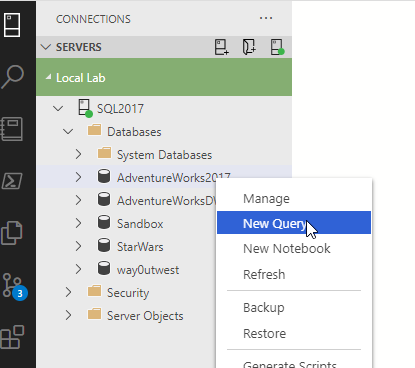
2020-05-13 12_05_06-Data Analysis - Azure Data Studio

Next, I’ll enter the query here into the pane:

SELECT DISTINCT Name
FROM Production.Product WHERE ProductModelID IN (SELECT ProductModelID
                                                 from Production.ProductModel
                                                 where Name LIKE 'Long-Sleeve Logo Jersey%');
GO

Once I have this, you can see in the image that the subquery has some  poor formatting. The subquery is quite wide and some keywords are cased differently.

Query shown in ADS

Let’s CTRL+Shift+P to get the command palette. If I type format, I’ll see some options in the image below for formatting (or something similar).

command palette with format options

I’ve been testing, so the recently used commands show the format document commands, which you will often use. In this case, I’ll select Format Document with. When I do that, I’ll get a list of formatters for SQL code installed on my system. In my case, I have SQL Prompt, the default mssql formatter, and a PostgreSQL formatter.

Installed formatters in ADS

Once I select Prompt, formatting will begin. I see a note in the lower right corner of ADS.

2020-05-13 12_13_58-● SQLQuery_1 - ._SQL2017.AdventureWorks2017 (Integrated) - Data Analysis - Azure

When this is done, I can see my query is formatted appropriately (according to my style). The keywords are proper cased and the spacing for the subquery has changed.

Reformatted code

Setting a Default Formatter

I don’t want a two step process every time I need to format code. In fact, the Format Document shortcut is Shift+Alt+F, and I want to use that. In order to do that, I’ll need to configure a default format.

Note: If you haven’t and you click Shift+Alt+F, ADS will ask you to configure one.

The command palette (CTRL+Shift+P) is the way to configure ADS. Click that and type “format”. You will see a list of commands, and you want to choose the “Format Document with” option. This brings up the list of formatters, as we saw above, but below this is the “Configure” option.

Configure formatter option in command palette

We choose this, and again see a list of formatters, but the text at the top has changed. In the image we can see this now says: “Select a default formatter for ‘SQL’ files”. We can pick SQL Prompt to set that.

formatter choices

Once we’ve done this, Shift+ALT+F will format your query.

Changing Styles

One of the things many of us want to do is use a custom formatting style. While the built in styles are handy, many users want custom ones. That includes me. I have a few custom styles I use regularly in SSMS. If you run ADS on Windows, your styles are imported. If not, I’ll do another post for that.

I can change styles in the command palette. Type “SQL Prompt” in there and you see options:

SQL Prompt Options in ADS

The one I’ll use is the recently used one “Change active formatting style” at the top. If I pick that, I see this on my ADS install:

SQL Prompt Formatting Styles

There are a number of Built In styles that come with Prompt, but we can see my three custom ones have been imported from SSMS. Each time ADS starts, it imports your styles, so if you change on in SSMS, which has a better style editor, you will see it here when ADS reloads.

I will set my “way0utwest” style as active and then reformat the query. I now see this:

new query formatting

The parenthesis location has changed. I also see the notice in the lower right that appeared after selecting a new active style.

Summary

This is just a basic look at using the formatting and choosing a style. If you are on Windows, all of your styles are available. If not, you’ll have to use the built in ones or edit one for yourself. I’ll cover editing styles in another post.

I also have a video here of the process of formatting code: https://www.youtube.com/watch?v=EWCk7wUIL_s&feature=youtu.be
Posted in Blog | Tagged , , | Comments Off on Formatting Code in ADS with SQL Prompt

Remote Sharing and Learning

Lots of technical people have spent time learning something on a computer. The idea of remote learning isn’t new to many of us that have watched events online for some time. Many of us have had the chance to watch some remote session from Microsoft, Redgate, or some other software vendor. We might learn online from some site like Pluralsight, or maybe we even attend some of the virtual chapters that PASS supports.

At this time, more of us than ever are remote from others, not just for learning, but most of our daily work, meetings, reviews, discussions, and more. Learning to be effective, and ensure you still perform at the level your employer expects, can be a challenge. I ran across a piece on how to run great workshops, which I think contains some good advice for many meetings, not just workshops or training sessions.

Much of the advice in the piece revolves around prep and practice. You should ensure your tools work, have documents available, ensure everyone can connect and access the technology. Things we probably should do for in person meetings.

We tend to do a lot of group work in my company, and I’ve found that being remote is sometimes a challenge. Everyone is now remote, which makes this more equal, and we’ve adapted well. I attend some of the group standups and reviews, where each team shares some progress. We’ve gotten good at switching presenters and keeping things on track, though this is more a one-way delivery of information rather than a discussion.

While we can share documents, it is hard to sometimes tell what other people are looking at or referring to when they are speaking. Asking them a question is helpful, but it can also be intimidating for some people to ask for clarification, especially if three other people have already asked at different times before. Communication is a challenge when people are remote, and over communicating can be important. Explain what you’re looking at or doing, and ensure you have a summary or a recording to re-watch. This can be invaluable in ensuring that everyone can access the same information.

I attended a conference a little over a month ago that used a shared whiteboard, which I thought was a great idea. I wonder if that would be useful in some of our meetings. Having someone take notes is good, but being able to review to ideas on a whiteboard is something I’ve often appreciated. I’ve used whiteboards to explain or clarify things in live meetings in the past. A virtual one might be nice to use, though with some easy way to tie together thoughts from different individuals. We sometimes group edit Word or Excel docs, but that often has us looking at different sections of the document, not the same one. Likely a communication issue, but still an issue.

We need to learn to get better and working together remotely. It’s a skill that will matter more and more over time. After this pandemic ends, I suspect many more organizations will adopt more remote work, which means more remote meetings. Learning to effectively present and absorb information from virtual events of all sorts is going to matter more in the future.

Steve Jones

Listen to the podcast at Libsyn, Stitcher or iTunes.

Posted in Editorial | Tagged | Comments Off on Remote Sharing and Learning

Daily Coping 14 May 2020

I’ve started to add a daily coping tip to the SQLServerCentral newsletter, which is helping me deal with the issues in the world. I’m adding my responses for each day here.

Today’s tip is today do something to care for the natural world.

Living on a ranch, I do more of it than I might otherwise need to do. A couple things I’ve done this week, not today. I needed to change the oil in a vehicle, so I did so and captured the used fluid, making a trip (with a mask) to recycle it.

I also spent some time working on caring for the lawn and shrubs, trying to keep things healthy. I need to take out a few old shrubs, some dead, and then I want to replant some trees, growing something for the future.

Posted in Blog | Tagged , , | Comments Off on Daily Coping 14 May 2020

Installing the #SQLPrompt Public Preview in ADS

The SQL Prompt Public preview extension for Azure Data Studio is out and you can add this easily. This is a quick post showing a few ways to install an extension to the tool.

First, download the preview from here. Unzip the file and you should have a file named sql-prompt-0.2.0.vsix on your filesystem.

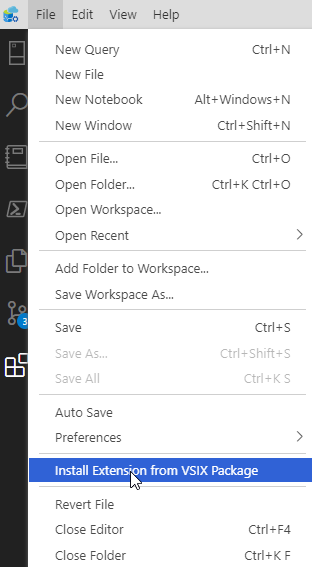
Now, from Azure Data Studio, you have a few choices. The File menu includes an Install Extension from VSIX option.

File menu in ADS with extension install highlighted

If you have the Extensions pane open, there are three dots in the upper right. Click them and there is an “Install from VSIX” option.

Extension context menu

For now the SQL Prompt extension is not in the marketplace, but it is coming. Many third party marketplace extensions will also have you download a VSIX file, so this method works for those as well.

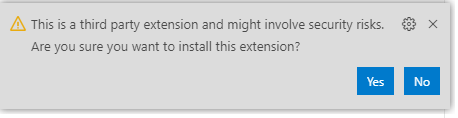
Click the menu item from either source and a file browser will open. Find your SQL Prompt VSIX file and click it. You will get a third party warning in the lower right side of ADS. Click Yes to install.

third party extension warning dialog. Click yes to install

This will install quickly and you will get a notice it is installed in the lower right.

install notice from ADS

Then you can begin using the extension. CTRL+Shift+P brings up some command palette, and if you type SQL Prompt, you’ll see some of the options.

SQL Prompt options in the command pallette

I’ll explore some of these items in future posts.

I’ve added a short video of this post on the Redgate YouTube channel: https://youtu.be/jplENuTg7Qo

Installing SQL Prompt into ADS
Posted in Blog | Tagged , , | 1 Comment