Tag: DLM

  • DevOps Webinar Tomorrow

    A quick reminder that tomorrow, Feb 21 at 12pm EST, I’ll be hosting another DevOps, Database Lifecycle Management (DLM) webinar. Together with Arneh Eskandari, we’ll show how we can each make changes to our own database, push the changes to git and reconcile merge issues.

    Register now, and watch us work together to perform distributed database development.

  • Validating a Set of Database Scripts using DLM Automation

    The basis of all the DLM Automation from Redgate is a series of PowerShell cmdlets. They might look intimidating or confusing, but they aren’t. This is part of a series of posts that examine how you use each one.

    Previously I looked at New-DatabaseConnection. In this post, I’ll go through Invoke-DlmDatabaseSchemaValidation. This is the cmdlet that one uses to check if your set of scripts will actually produce a database. This is equivalent to the “build” plugin that exists for a few platforms.

    The way this works is that the location of the database scripts is passed to this object through a pipe. This will then validate the scripts on LocalDB with a build of the database and the static data scripts. If this works, then an output object is returned.

    A Quick Build

    Let’s see how this works. I have a valid database folder on my computer. This has all my object code in subfolders, including static data in the data folder. I want to validate this folder.

    2016-11-22 13_56_30-ScriptFolder

    I can do that with this code. I’ll pass the location of the scripts into the cmdlet.

    $output = “e:\Documents\GitHub\SimpleTalk_Devlopment\ScriptFolder” | Invoke-DlmDatabaseSchemaValidation

    When I do this, a LocalDB instance is created and the code validated. I get a message to that effect. The output variable has the confirmation message.

    2016-11-22 14_06_39-powershell

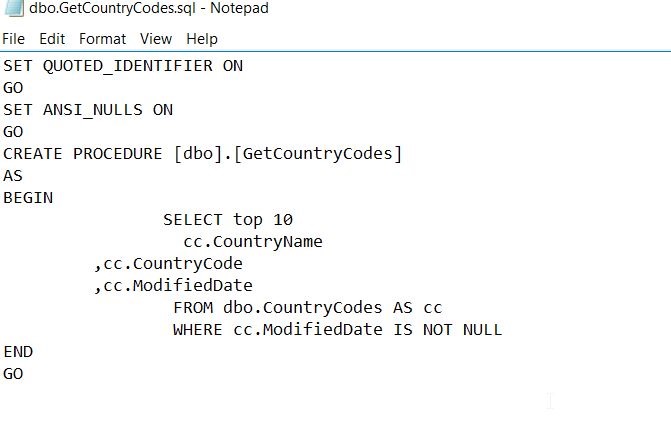
    This means the code is valid. However, does this really work? Let’s edit some code and see. I’ll change the code for a procedure. Here’s the original GetCountryCodes.sql.

    2016-11-22 14_08_29-dbo.GetCountryCodes.sql - Notepad

    Let’s change this to top 100 and add an ALTER, but I’ll get an extra comma in there. This is no longer valid SQL.

    2016-11-22 14_10_45-dbo.GetCountryCodes.sql - Notepad

    Let’s re-run the build. We now see this has failed with an error, and the file is the one I edited:

    2016-11-22 14_11_41-powershell

    This is a quick look at builds, but there is more that can be done. You can specify the server and database to be used, combining this with the New-DlmDatabaseConnection I previously wrote about.

    I urge you to experiment with this cmdlet if you want to perform your own builds.

  • DLM Automation–Making a Database Connection

    One of the things I’ve been wanting to do is dig more into the command line automation cmdlets from the Redgate DLM Automation suite. While there are plugins for many build and release systems, I should be able to customize, or fall back, to the command line if necessary.

    Plus, this allows me to get a better feel for what’s happening at each step.

    This post looks at the basics of making a connection to a database. Note that this is documented on the DLM Automation 2 Cmdlet Reference page.

    New-Database Connection

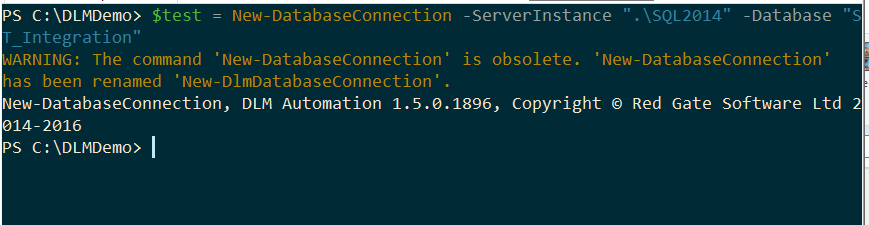
    When I started working with the connections, I used the New-DatabaseConnection cmdlet. However, when I run this now, I get this:
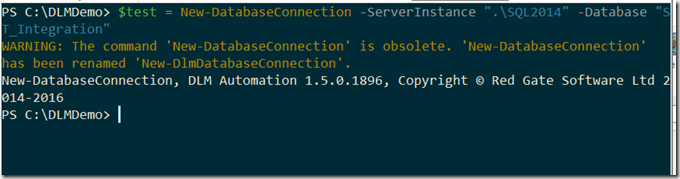
    2016-10-14 15_32_04-DLM Automation–Making a Database Connection - Open Live Writer

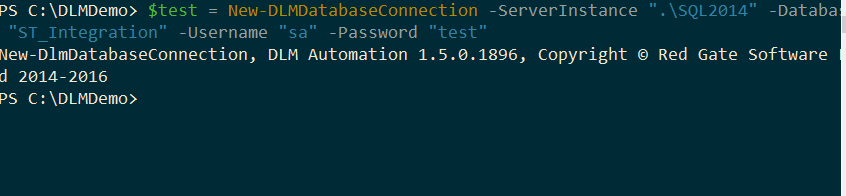
    That’s fine, as my call to the new cmdlet works.

    2016-10-14 15_32_34-cmd - powershell

    Do I know what’s happening here? I should investigate further.

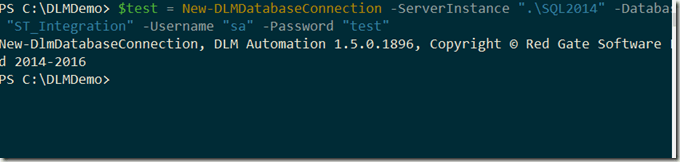
    First, if I’ve run this, what does it do? Not much, apparently. If I run an Extended Events session looking for a connection, I don’t get one. Let’s try a new command, this time using a name and password.
    2016-10-14 15_37_53-cmd - powershell

    That’s an invalid password for my instance (as it should be on every instance in the world). However, I don’t get an error. No connection was made. In this case, the cmdlet is storing off the connection credentials that will be used. If I don’t provide the user/password, then a trusted (Windows auth), connection is assumed.

    Can I now test this? Sure, I’ll use the Test-DLMDatabaseConnection to make a connection.

    2016-10-14 15_39_37-cmd - powershell

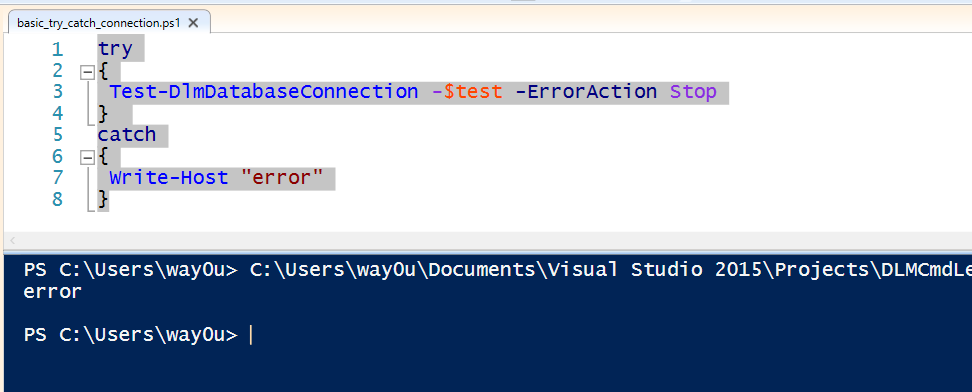
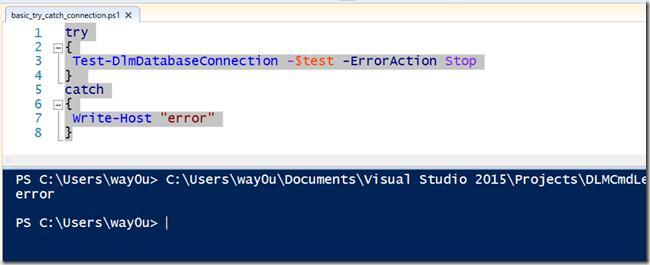
    This fails. That’s good to know. Now I can use this to actually determine if I target database is alive before I continue processing. My preferred method here would be to wrap this up in some error handling. For example, I can use a try..catch structure in PoSh. I’ll switch to the ISE to make this cleaner. Here’s the code

    try
    {
    Test-DlmDatabaseConnection -$test -ErrorAction Stop
    } 
    catch
    {
    Write-Host "error"
    }

    In the ISE:
    2016-10-14 16_22_45-Windows PowerShell ISE

    I can also get the error details from the current object ($_). Note, I’m not a PoSh expert, so if there are better ways, let me know.
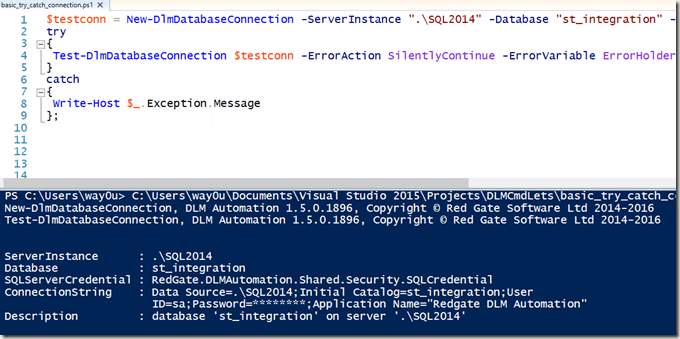
    2016-10-14 16_36_48-Windows PowerShell ISE

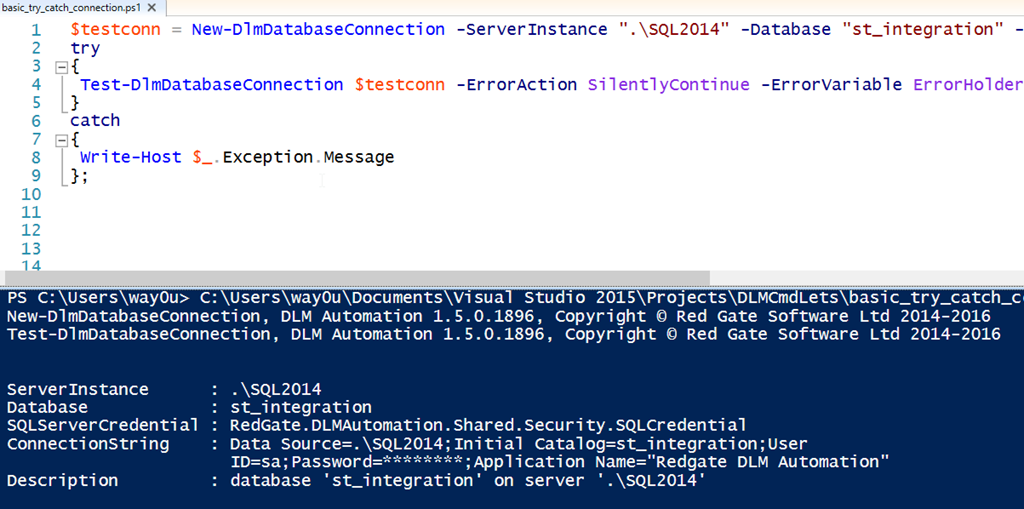
    I can also pass in some common parameters, like –ErrorAction and –ErrorVariable. Then I can use these to decide whether or not to continue. In my case, I’ll just write a message. Here’s my code:

    $testconn = New-DlmDatabaseConnection -ServerInstance ".\SQL2014" -Database "st_integration" -U "sa" -Password "test"
    try
    {
    Test-DlmDatabaseConnection $testconn -ErrorAction SilentlyContinue -ErrorVariable ErrorHolder;
    } 
    catch
    {
    Write-Host $_.Exception.Message
    };
    
    if ($ErrorHolder)
    {
    Write-Host($ErrorHolder)
    }
    else
    {
    Write-Host("Everything works");
    }

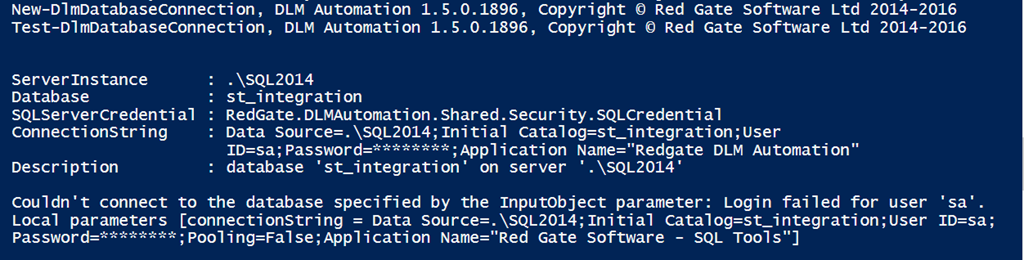
    That will give me this:
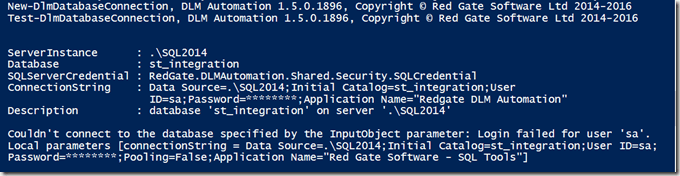
    2016-10-14 16_41_08-Windows PowerShell ISE

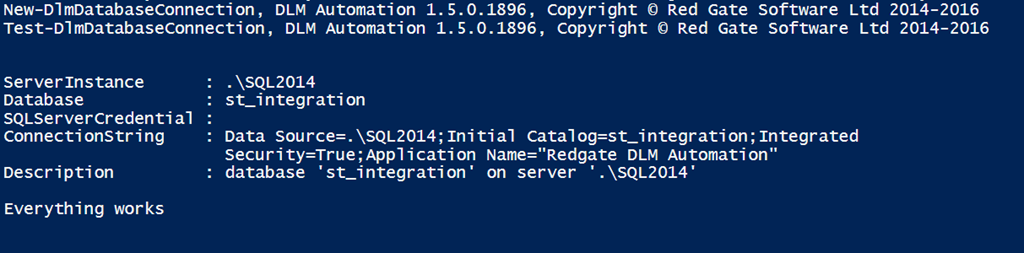
    If I remove the user and password parameters, I get this:
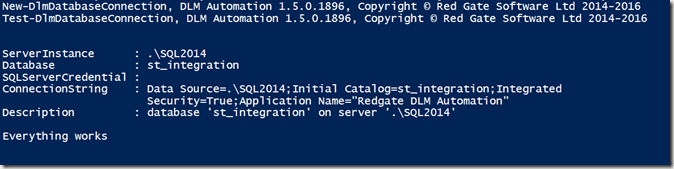
    2016-10-14 16_41_29-Windows PowerShell ISE

    You didn’t think I’d publish the real sa password, did you? Of course not. If I change the code to the right password, things connect.

    Checking the Object

    What if I just want to check the object? Well, there are properties associated with the object. For example, if I use a simple variable to assign to the object, I can see some properties. If I just type the variable name, $testconn, I get these properties:

    • ServerInstance
    • Database
    • SQLServerCredential
    • ConnectionString
    • Description

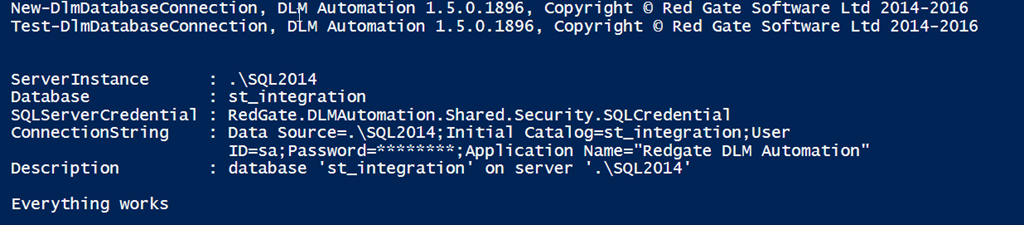
    You can see these returned in a test session.
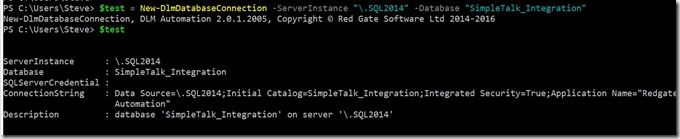
    2016-11-14 16_58_29-cmd - powershell

    Other Options

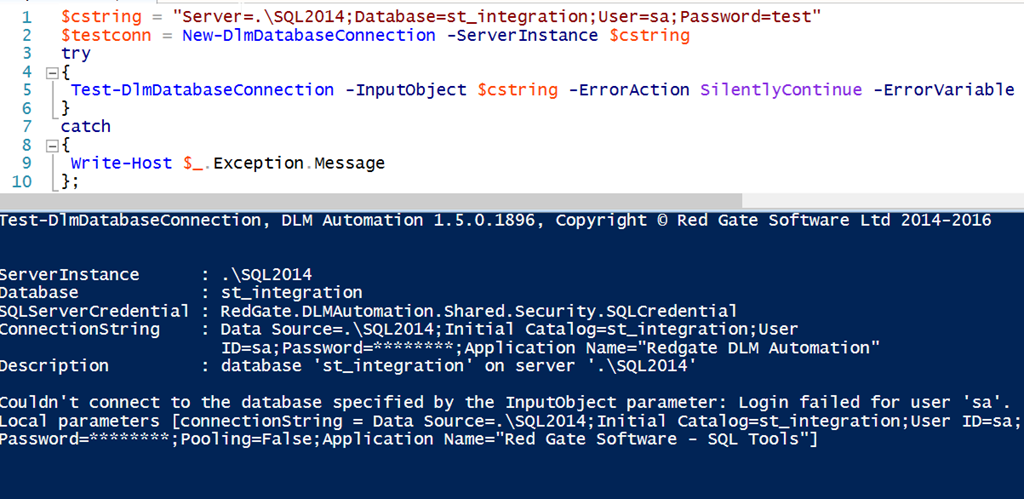
    I have other parameters I can use with my connection, or rather, in place of my connection object. I can use a connection string, with all of the parameters that are valid there. For example:
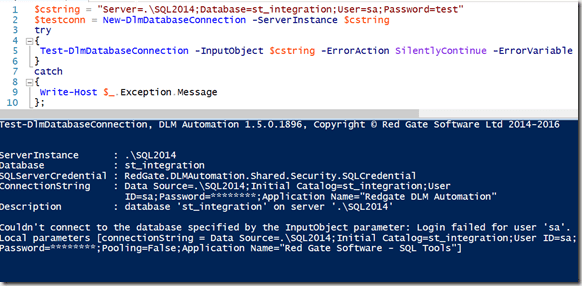
    2016-10-14 16_53_17-Windows PowerShell ISE

    If I enter the correct password, I get this:
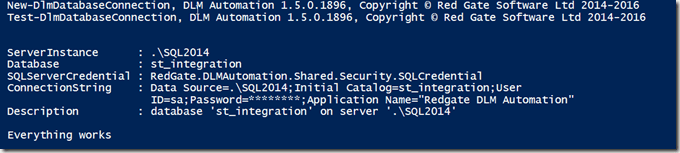
    2016-10-14 16_54_09-Windows PowerShell ISE

    My connection string can contain all of the items I might normally use: ApplicationIntent, Encrypt, NetworkLibrary, etc. A full list of parameters is at: https://www.connectionstrings.com/all-sql-server-connection-string-keywords/

    The New-DlmDatabaseConnection object outputs a RedGate.DLMAutomation.Compare.SchemaSources.DatabaseConnection object, which is the input to quite a few other of the cmdlets. While not complex, it is worth understanding how to use this cmdlet, which is the basis for determining from which source or two which target you will be moving database changes.

    In another post, I’ll start to bind this cmdlet with others and actually perform some database deployment automation work.

  • DB CI: Getting Test Results in VSTS

    One of the things I struggled with a bit was getting test results to appear in VSTS from my builds.

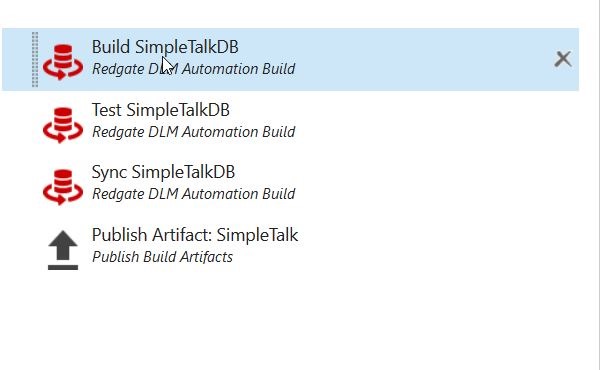
    Here’s my original Build flow:

    2016-10-07 10_50_32-Microsoft Visual Studio Team Services

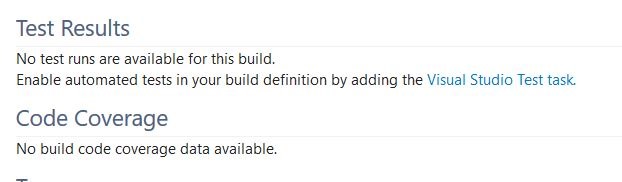
    However, when I’d run a build, I got this in the Build summary:

    2016-10-07 10_51_43-Microsoft Visual Studio Team Services

    That’s not great, and I knew this could work better, so I started to look at where my test results were. Here’s what I did to get the results to appear.

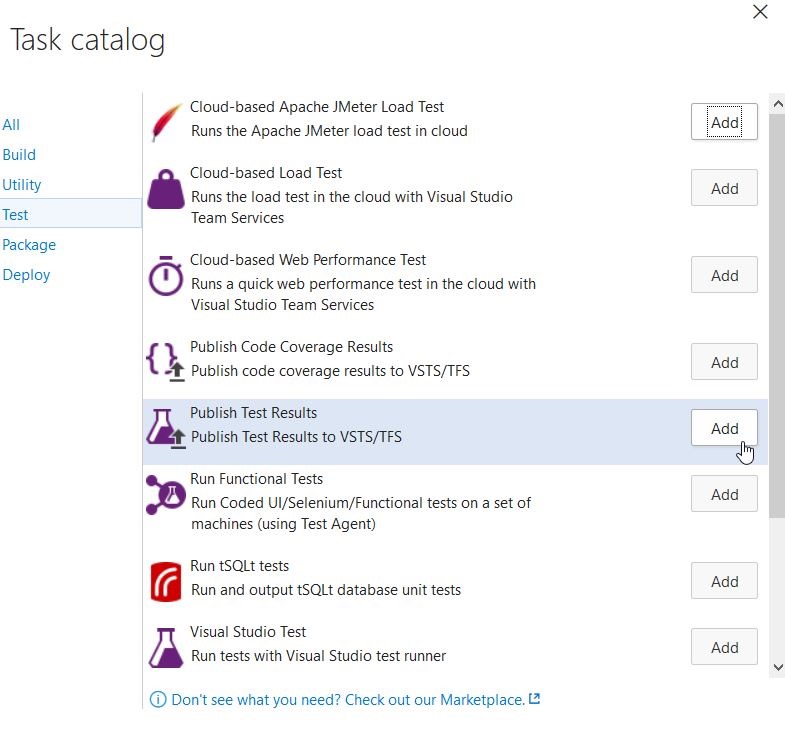
    I added a Publish Test Results task to the end. This is in the “Test” section of the Task catalog.

    2016-10-07 10_39_11-Microsoft Visual Studio Team Services

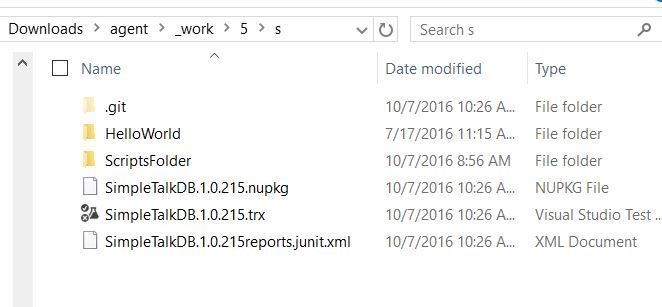
    When I looked in the output of the build tasks, I found these files:

    2016-10-07 10_31_41-s

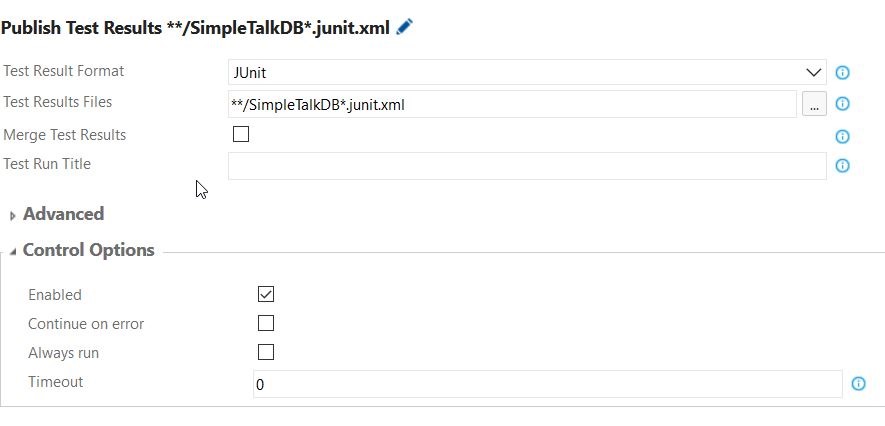
    I kept thinking I needed to get the .trx file to load, but that wasn’t correct. I really wanted the “*reports.junit.xml” file. After a little experimenting, I configured the task like this:

    2016-10-07 10_40_33-Microsoft Visual Studio Team Services

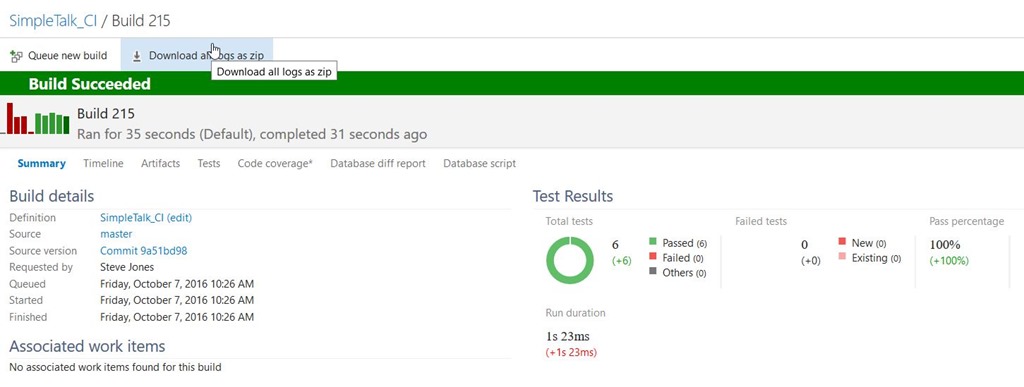
    Once I saved this (with a comment), and ran a new build, I could see test results.

    2016-10-07 10_31_50-Microsoft Visual Studio Team Services

    I could have just read the XML file in my build result folder, but that’s a pain. Typically we don’t care unless there is a failed test, but when there is, it’s nice to see what actually failed.

    Plus, having the results in the console means I can show the other developers and management that tests are being run and are checking code.