

Disclosure: I work for Red Gate Software
Someone asked me the other day if I’d ever used SQL Packager to export a table to send to another person. I hadn’t, and in fact hadn’t even ever run the tool, but this individual said it worked great.
Since Red Gate tools are designed to be simple and intuitive, I thought I should give it a try and see what happens. I went through the Start Menu and found SQL Packager in my toolbelt installation:
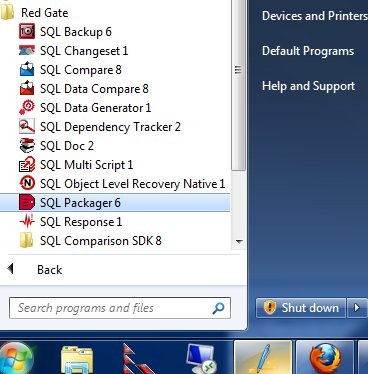
I documented this as I went, shooting this images as I went through the process for the first time. As soon as Packager started, it began the packing wizard.
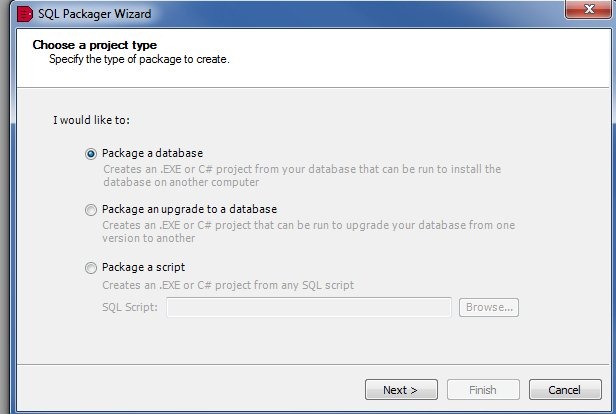
SQL Packager is designed to help you bundle up a database, or part of a database, as a part of an installation in your application. It can produce an .exe, a C# project, or a set of scripts that you can include as a distributable item in your application installation (or upgrade). The information can be compressed, so you reduce the requirements for your customers.
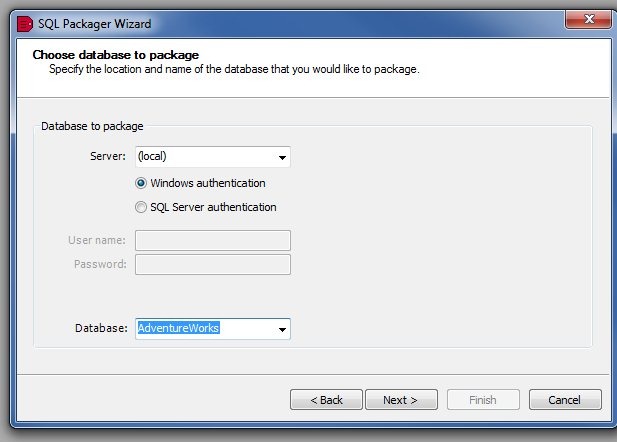
In my case, I decided to just package up a table. I first signed into my local instance, and chose the AdventureWorks database.
Next, I chose just one table, the Customers table. The Red Gate tools tend to follow a similar, intuitive design, and try to do the most common things for most customers. In this case, the entire database was selected (this is a database packaging tool), so I deselected all, and then chose the Customer table.
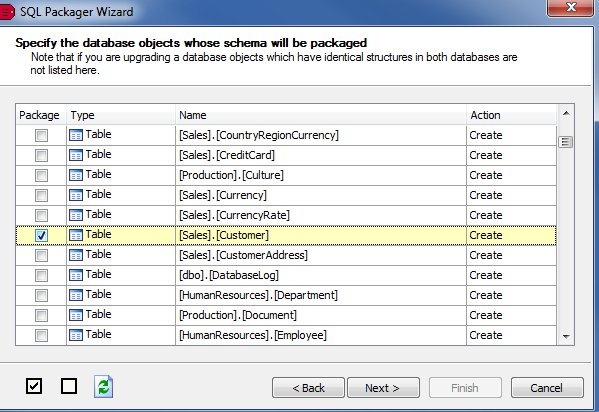
Once I choose the table and click next, and confirm the selection, the packaging begins. I get some options as to how I might choose to build my package.
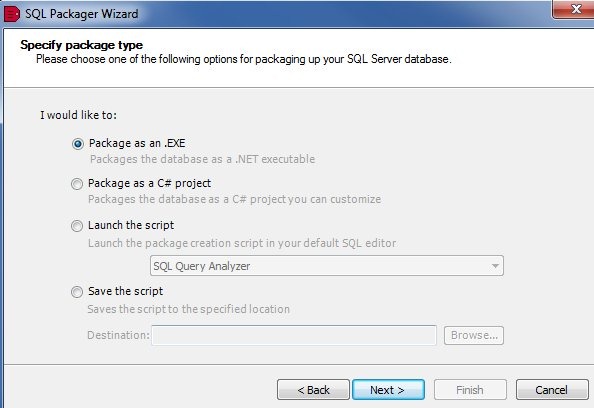
The options are shown, and in this case I choose to save the script. Once I clicked next, I had a change to see the final script. First there was the schema tab:

On this tab, all the DDL for my table is there, including a couple dependent tables, and some functions needed for defaults or computer columns. Keys and indexes were included.
On the data tab, I had the DML for the actual data.
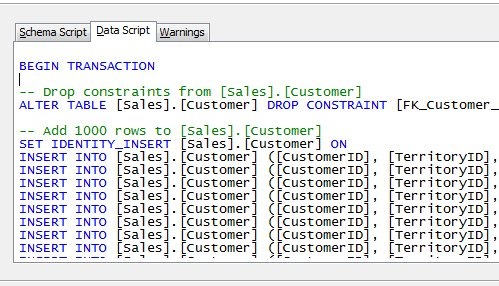
The comment says “Add 1000 rows”, which seems like a default. However I went back and checked in SSMS, and sure enough, my table had 1000 rows.
I clicked next, and had the chance to specify a save location.
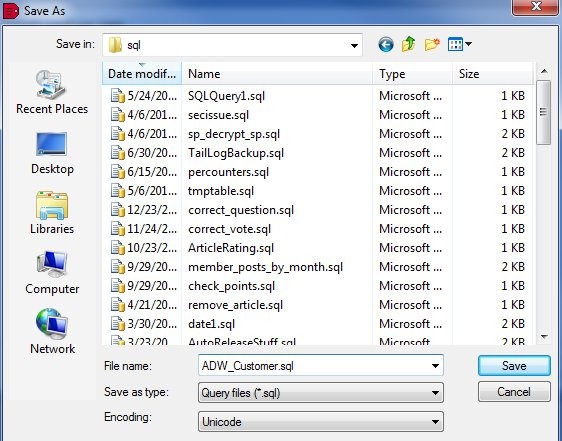
After saving, I opened the script in SSMS, just to check. Sure enough, the DDL was at the top:
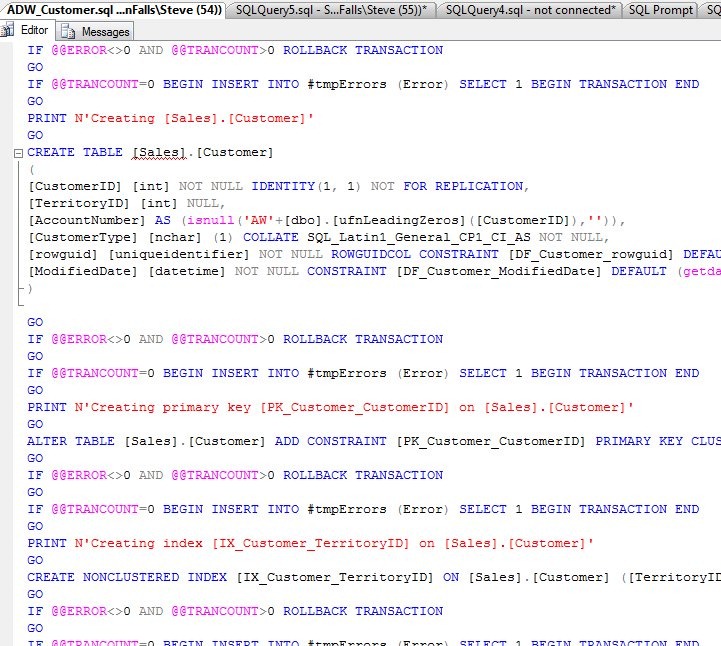
and the data at the bottom:

Simple, and easy.
If you are looking for a way to move certain sections of your database for a deployment, like all the lookup tables, give SQL Packager a try.
If you need to send some stuff to a client or friend, it might be a simple way as well to export the DDL and DML into one package.


Comments
7 responses to “A Quick Export with SQL Packager”
Simply Superb. Thanks for sharing.
LikeLike
This is a very useful tool. Thank-you for writing about this and sharing it with the community.
LikeLike
I have previously used a compare tool to do this, but this tool seems to be so much easier. Thanks for the article.
LikeLike
I didn’t realize something like this existed. I’ve created the scripts by hand and usually throw the data into an xml. This makes it too easy! Thanks
LikeLike
[…] opened the tool. So I started it up and exported a table. I was surprised how easy it was, and I wrote up a short blog on […]
LikeLike
You can create script with SSMS itself isn’t it ?? then why create script with this paid tool??
LikeLike
This includes not only the schema, but also the data. It also would allow you to send a table to someone in an executable, not requiring T-SQL to be run by someone. It’s an alternative that can make the deployment of schema and database easier.
LikeLike