Tag: sql server

  • Customizing Statistics Histogram in SQL Server 2019

    The use of statistics in SQL Server is tightly embedded in the query optimizer and query processor. The creation and maintenance of statistics is usually handled by the SQL Server engine, though many DBAs and developers know that periodically we might need to update those statistics to ensure good performance of queries. SQL Server 2019 gives us new options.

    The historical organization of statistics for a table is a 200 step histogram of values sampled from the data. This could be a sample of the entire dataset or a subset. For tables less than 8MB, the entire table is sampled. Above this, the proportion changes to a lower rate and reduce the resources required.

    This means that sometimes we have less accuracy in the histogram than we would like.

    A New DMF

    In SQL Server 2019, we have a new DMF, sys.dm_exec_table_stats, that is designed to create a new statistics entry for your table. The parameters for this DMF are:

    • object_id – this is required. If you have just the table name, is object_id() to enter that, but you need the id of the table.
    • schema_id – also required. The schema_id of the schema for this table.
    • column_id – required. Column on which you are creating statistics
    • histogram_steps – not required, but defaults to 200, which defeats the purpose of this DMF. You can specify any value up to 1024

    This means that you can create new statistics that include a more granular detail. You can see this in action with the DBCC SHOW_STATISTICS command and the WITH HISTOGRAM option. I ran this DMF with a value of 1024 on a large version of AdventureWorks and got these results. I am only showing the bottom of the results here.

    2019-03-27 11_43_47-SQL Prompt - Insert results1.sql - Plato_SQL2017.AdventureWorks2012CS (PLATO_Ste

    I didn’t get the full 1024 values, but I did get close here. As you can see, the histogram is significantly larger than the 200 step limit.

    Using Larger Statistics Histograms in your Database

    There is a great tutorial on how this works from the SQL Server Tiger Team. I’d encourage you to read this and experiment with your own data set and see what values are most useful. It seems for larger tables, the Tiger Team recommends 500 steps, so 1024 might be overkill for most of us.

    Also, this is an April Fool’s joke, which you might have realized if you clicked on some of the links above. Hope you enjoyed this.
  • Thinking about Setup and Installation

    I’m working the first section of a basic administration course, and the first part of this is installing SQL Server 2019. I built a similar course a few years back for SQL Server 2016, but the world has changed. As I review the requirements for installation, it’s interesting to note that we now have Linux and Docker installs in addition to Windows.

    As I went through the list for SQL Server 2019, I found a few things that stood out for me. First, the requirements for the platforms are different. I’ll note a couple:

    • CPU – a 2.0GHz processor needed on Linux, but recommended on Windows. You can get by with a 1.4GHz one.
    • RAM – 1GB on Windows, but 2GB on Linux.
    • No .NET requirement on Linux, though presumably the package manager installs this.
    • Windows is 2012+, but Linux has specific versions listed as supported.

    The first two items probably don’t matter. Most of us aren’t going to run SQL Server on a slow, single core machine with just a few GB of RAM. Even laptops tend to be 8GB these days, so who cares. Maybe a few people, but if you’re that hardware constrained, this is likely an embedded type installation. In that case, I’m not sure what to tell you.

    The .NET items is interesting. I have had to update .NET at times on VMs, so I’m surprised Linux doesn’t require anything. I’m sure something is required, but if this is embedded in the package manager, I’d still like to know.

    Overall I do find Linux easier to use and if I’m going to consider installing SQL Server, I am leaning towards Linux as the platform. There are still some security and AD integration items to work out, but overall, I think I prefer running SQL Server on a Linux host, and likely in a container, moving forward.

  • Pro SQL Server on Linux–Install

    As part of my learning goals for 2018, I wanted to work through various books. This is part of my series on Pro SQL Server on Linux from Bob Ward.

    I had an Ubuntu VM setup at home, but it started to flake and eventually stopped responding as a desktop. Since I’m not a Linux expert, I wasn’t sure what to do and really didn’t think it was worth debugging a broken Linux OS. Instead, I moved on.

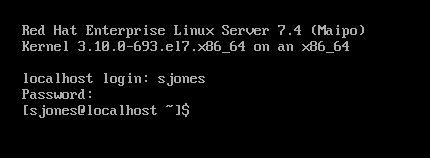
    In the book, Bob uses Red Hat Linux, so I downloaded RHEL and installed it, after going through the process of joining the Red Hat Developer network. If I don’t do this, I only get a 30 day trial, which I didn’t want. I get the process, and understand them making money.

    For a lab, it was a pain. This made me want to go back and just get Ubuntu.

    2018-12-20 09_15_22-RHEL74 Bob - VMware Workstation

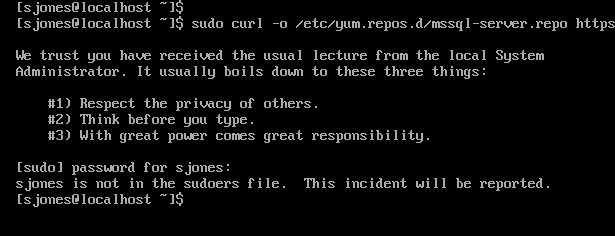
    In following the install instructions, I started with getting the Microsoft registry set up. I got an error when downloading the repo file.

    2018-12-20 12_34_30-RHEL74 Bob - VMware Workstation

    From this link, I added my user with

    usermod –aG wheel sjones

    2018-12-20 12_37_49-RHEL74 Bob - VMware Workstation

    Had to change the network to bridged in VMWare. Not sure why, but this is how I have a few VMs set, so I just matched this.

    Subscription

    I needed to attach my subscription. I started by registering, which was fun. I had to go back to the Red Hat portal, log off and back on.

    2018-12-20 12_48_12-RHEL74 Bob - VMware Workstation

    Then dependency errors. Isn’t yum supposed to resolve this?

    2018-12-20 12_45_08-RHEL74 Bob - VMware Workstation

    The key is that I wasn’t getting updates. I had to run

    subscription-manager attach –auto

    which linked my system to the update system. I can see how Red Hat makes money. This feels as onerous as Windows for management and product key matching. In any case, this allowed the install to proceed:

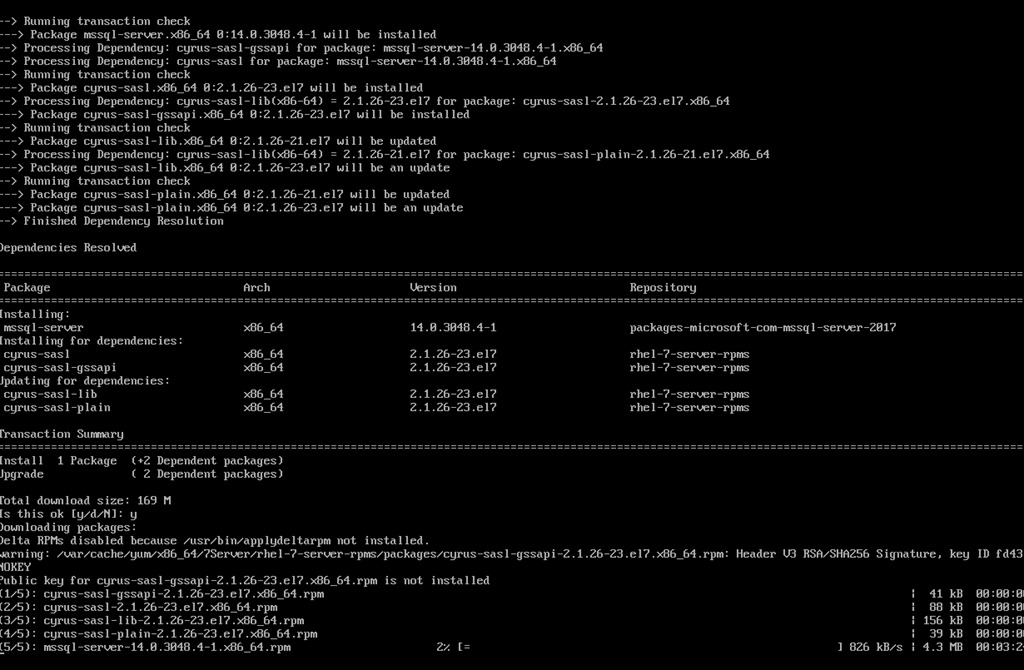
    2018-12-20 12_58_20-RHEL74 Bob - VMware Workstation

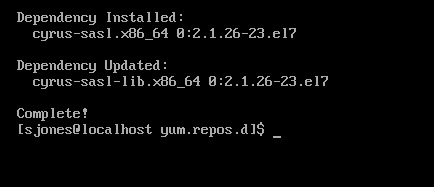
    Eventually this completes, which is a welcome sight.

    2018-12-20 13_02_00-RHEL74 Bob - VMware Workstation

    One note, when trying to get the dependencies, I removed the –y option for the install. Once things worked, I had to answer “y” to a lot of questions, so you’ll want that enabled.

    Configuration

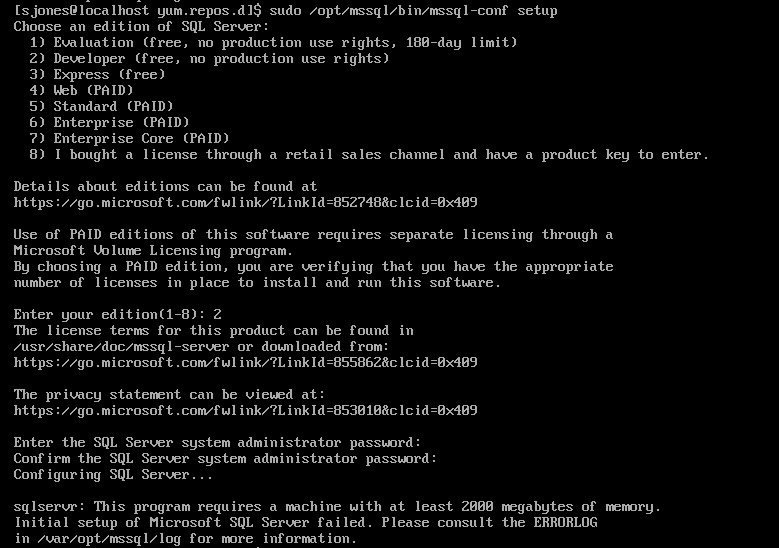
    The next step is to configure your instance. I started this, but it didn’t quite work.

    2018-12-20 13_04_13-RHEL74 Bob - VMware Workstation

    If you look, you’ll see the failure message is that we need 2000MB (2GB) of memory. The VM has 2048, but that’s not enough. I reset this to 3072MB and the config worked.

    2018-12-20 13_07_57-RHEL74 Bob - VMware Workstation

    Validating the Install

    From the book, the first step is to check the service.

    2018-12-20 13_12_04-RHEL74 Bob - VMware Workstation

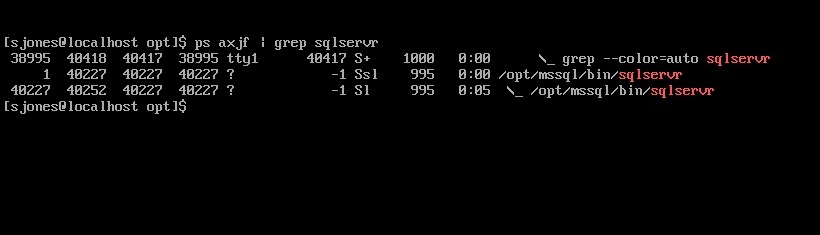
    The the process.

    2018-12-20 13_12_33-RHEL74 Bob - VMware Workstation

    That’s good, so I followed instructions to install tools. This ran off the screen, so I didn’t bother capturing a screenshot, but it worked according to instructions.

    Next, connect to SQL Server and check the version.

    2018-12-20 13_54_05-RHEL74 Bob - VMware Workstation

    Tada. Well, not that exciting. The process was more annoying than I expected or remembered, but most of that appears to be RHEL more than SQL Server.

    However, this was a nice test and project, with no GUI on the system. Looking forward to doing more with this across the month.

  • Get Patched If Not Supported

    There are plenty of reasons not to upgrade your SQL Servers to a new version. Perhaps you know the system is working and don’t want to disrupt activity. Often we don’t want to take a chance that some change in functionality causes us issues. In many cases, the new functionality might not be used in your current system, and you don’t see the ROI for the cost of upgrades. Costs certainly are a concern as SQL Server has gotten more expensive across time. In all these cases, it makes sense to stay on your current version. Software Assurance might negate the upgrade cost in money, or even give you a reason to upgrade, but it doesn’t prevent any of the other time and resource costs.

    Patches don’t cost money, however, and they are included in your cost. While I am nervous about applying patches right away, I do want to apply them at some point. If for no other reason, I do want to ensure I’m going to get into a position where I have to apply a patch to fix something or get support in an emergency and not have done any testing. I am more nervous now after the recent Windows Fall Update issues, and definitely want to let others test patches for a month or two before I apply them. Thanks to those of you that patch early and report issues.

    The exceptions I make here about avoiding patches are for older versions of SQL Server. If I’ve got systems that are out of mainstream support, I want them patched. At that point, only security patches are coming and if I get those, I need to apply them, which means I need to be sure all other patches are in place.

    Apparently many of you think like me, but not enough of you. I ran across a post from Erik Darling looking at a cross section of their customers, who I’d like to think are slightly more on the ball than everyone else, but perhaps not. In any case, lots of SQL Server 2008 and SQL Server 2012 systems haven’t been patched, with R2 and 2014 not far behind. While I know some vendors make patching difficult for SQL Server DBAs, we ought to be pressuring them more and more, and even asking our management to do the same.

    We ought to be patching systems on a regular basis. That’s a part of the software life cycle and until we find ways to write bulletproof software, we’re going to be patching. Microsoft is in the same situation as most of us, which is why they deliver patches regularly for SQL Server. They need to patch their Azure databases and ensure they are prepared for security issues.

    Make a plan to test these patches on your systems and start implementing it. None of us wants to be caught in a situation where we have to apply a security patch to an older server next week and we have no plan for how to test the application. Perhaps even worse, none of us wants to have a data breach because we were afraid to apply a security patch *because* we didn’t have a test plan.

    Steve Jones

    The Voice of the DBA Podcast

    Listen to the MP3 Audio ( 3.9MB) podcast or subscribe to the feed at iTunes and Libsyn.